Voice narration
Talk while you record. The audio is saved with the guide, and with a voice provider set up, your words become step notes.
With Narrate on, the recorder records your microphone alongside the steps. What you get depends on whether a transcription provider is set up:
| Setup | What happens to your voice |
|---|---|
| No voice provider key | The audio is saved with the guide and used as the voice-over of video exports. |
| A voice provider with a key | The same, and your speech is transcribed and written into the step notes. |
Narration is optional and off by default.
Recording with narration
- Open the recorder. See Recording.
- Tick Narrate in the bar.
- Press Start recording. Your browser asks for microphone access the first time; allow it.
- Talk as you work. Say what you are about to do, then do it.
- Press Finish.
Pause pauses the audio too, so the narration always lines up with the steps. If you decline microphone access, or the browser cannot record audio, recording carries on without narration.
Narrate needs permission to upload files, like screenshots do.
Choosing a microphone
By default the browser’s default microphone is used. To pick another:
- Go to SimplifyGuide → Settings → Voice narration.
- Press Allow microphone access, so the browser can show device names.
- Choose your device under Microphone. A level meter shows it is picking up sound.
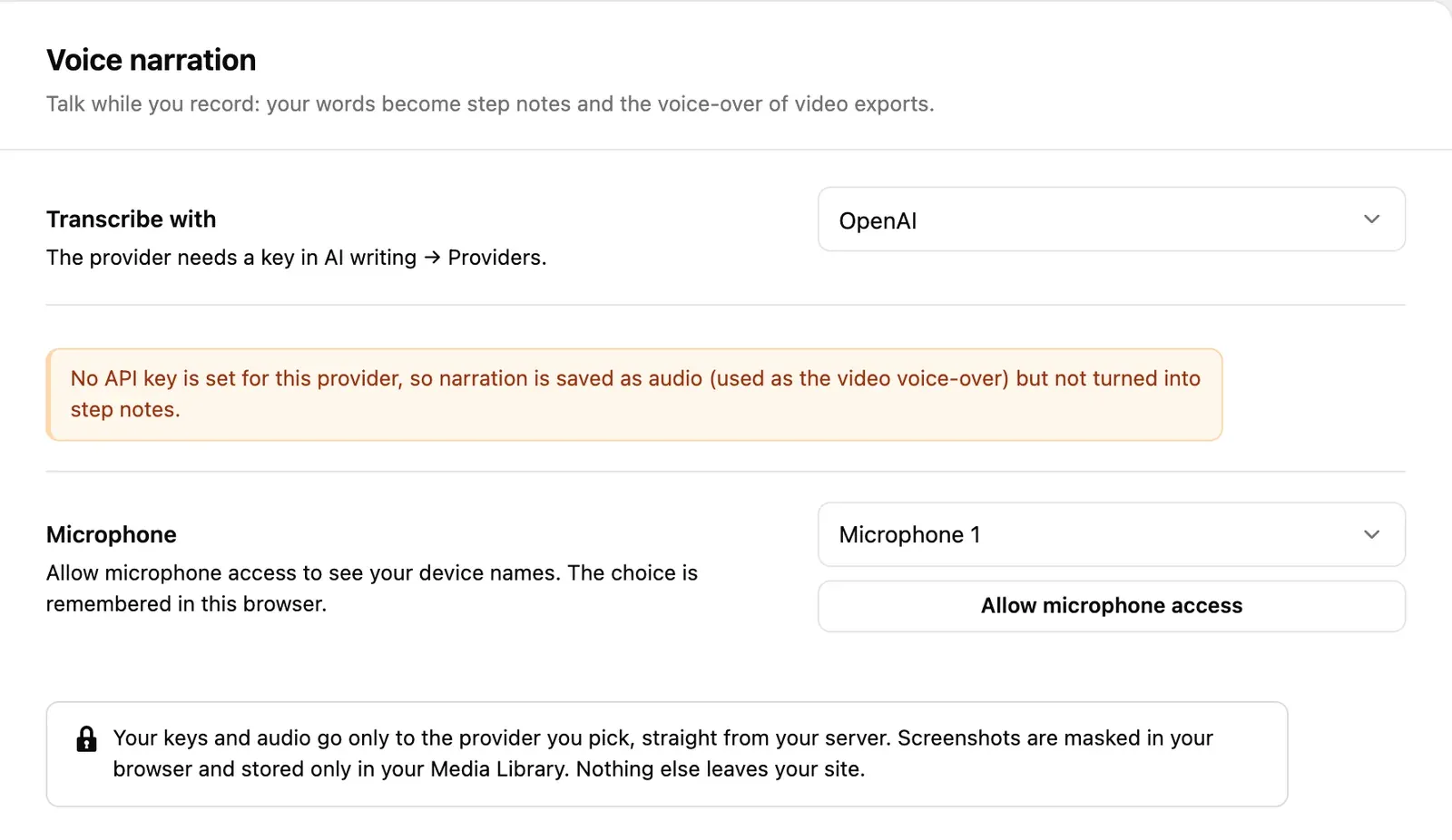
The choice is stored in this browser only — device IDs differ between browsers and computers — and takes effect straight away, without saving the settings. If the chosen microphone is unplugged, the recorder falls back to the default one.
Where the audio goes
When you press Finish, the audio is uploaded to your Media Library and attached to the guide, under a random file name. Browsers record WebM, Ogg or MP4 audio, depending on which they support.
- A guide has one narration. Recording more steps with Narrate on replaces the earlier audio.
- The narration file can be at most 25 MB, the common limit of transcription services. Your server’s upload limit applies too; below 8 MB, long narration may not upload.
- The editor shows a Narration player above the steps. Delete narration removes the audio file; step notes stay.
Turning speech into step notes
Transcription sends the audio from your server to the provider you choose. Set it up under Settings → Voice narration:
- Under Transcribe with, choose OpenAI, Groq or Custom (OpenAI-compatible server). OpenAI is the default.
- Add that provider’s key under Settings → AI writing → Providers (see
AI providers). The
transcription model is set there too (
whisper-1for OpenAI,whisper-large-v3for Groq). - Save changes. The Voice narration tab should say Ready: narration is transcribed by ….
The voice provider is separate from the provider that writes step text: you can write steps with Claude and transcribe with OpenAI, for example.
Once it is set up, pressing Finish transcribes the narration straight away.
How speech is matched to steps
People usually describe an action and then do it. So each spoken sentence goes to the first step recorded at or after the moment you started saying it, and anything said after the last step goes to the last step. Several sentences before one click are joined into one note.
A transcribed note fills a step’s note only if the note is empty or was itself written by voice or AI. Notes you typed by hand are never overwritten.
Transcribing later
If a guide has narration but no transcription — you set up the provider afterwards, or transcription failed — press Transcribe into notes next to the Narration player in the editor. It reloads the steps, so save any changes first. The button appears only when a voice provider is ready.
Who can transcribe
Transcription counts as an AI request. It is available to users who can publish posts (Authors and above) and shares the per-user hourly limit on AI requests. Others can still record narration; it is saved as audio only.
Privacy
The audio is stored in your Media Library. It leaves your site only when transcription is set up, and then only to the provider you picked, straight from your server. Like all WordPress media, anyone with a file’s exact link can open it.