Your first guide
Record a four-step guide to updating your site title and tagline, tidy it in the editor, publish it, and play it back with Show me.
This tutorial records a real task end to end: changing your site title and tagline under Settings → General. It takes about five minutes and touches every part of SimplifyGuide you will use day to day — the recorder, the editor, publishing and Show me.
You will change your real site title and tagline while recording. A field is only recorded when its value changes, so type something different, and change it back afterwards if you want to keep the old one.
Before you start
- You need a role that can record guides (Author and above) and can change site settings (Administrator), because the task itself is an admin task.
- Use Chrome or Edge. Firefox and Safari can only share a whole window, where nothing can be blurred, so they record steps without screenshots. See Recording.
- Your site should be on HTTPS or
localhost, or steps will have no screenshots.
1. Open the recorder
Go to SimplifyGuide → Record a Guide. The recorder fills the browser window: a bar across the top, your site in the middle, and an empty Steps panel on the right.
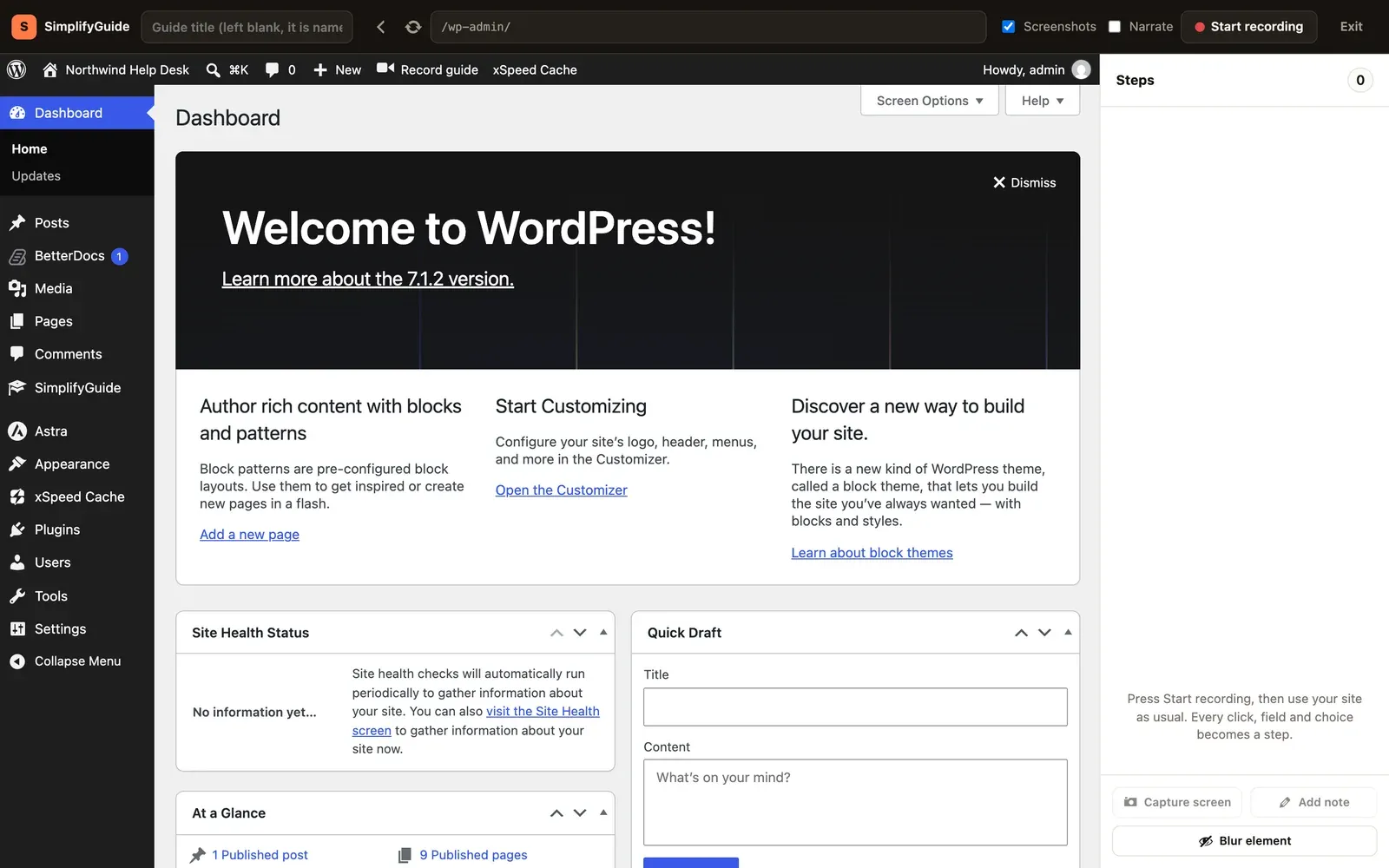
Leave the title field empty. SimplifyGuide will name the guide from what you do.
Keep Screenshots ticked and leave Narrate off for now.
2. Start recording
- Press Start recording.
- Your browser asks what to share. Choose This tab (in Chrome, it is usually already selected) and press Share.
The bar shows a red REC badge, and Start recording is replaced by Pause and Finish. From now on, what you do inside the site becomes steps.
3. Do the task
Work in the site area of the recorder exactly as you normally would:
- In the left menu, click Settings. General Settings opens.
- Click into Site Title and type a title.
- Click into Tagline and type a tagline.
- Scroll down and click Save Changes.
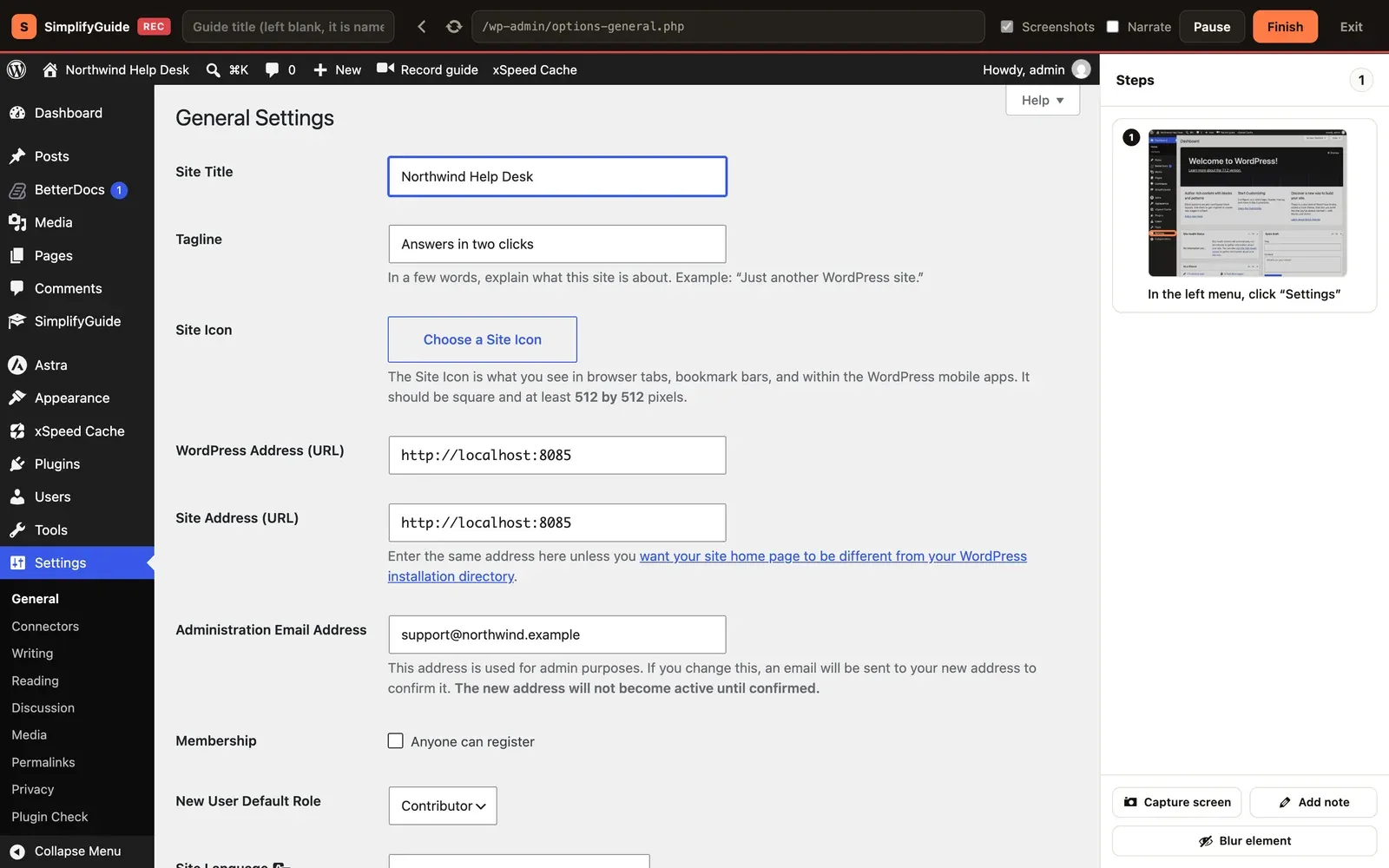
Each step appears in the Steps panel with a thumbnail. A typed field becomes a step when you leave it — when you click the next thing — so the Site Title step appears as you click into Tagline, not while you type.
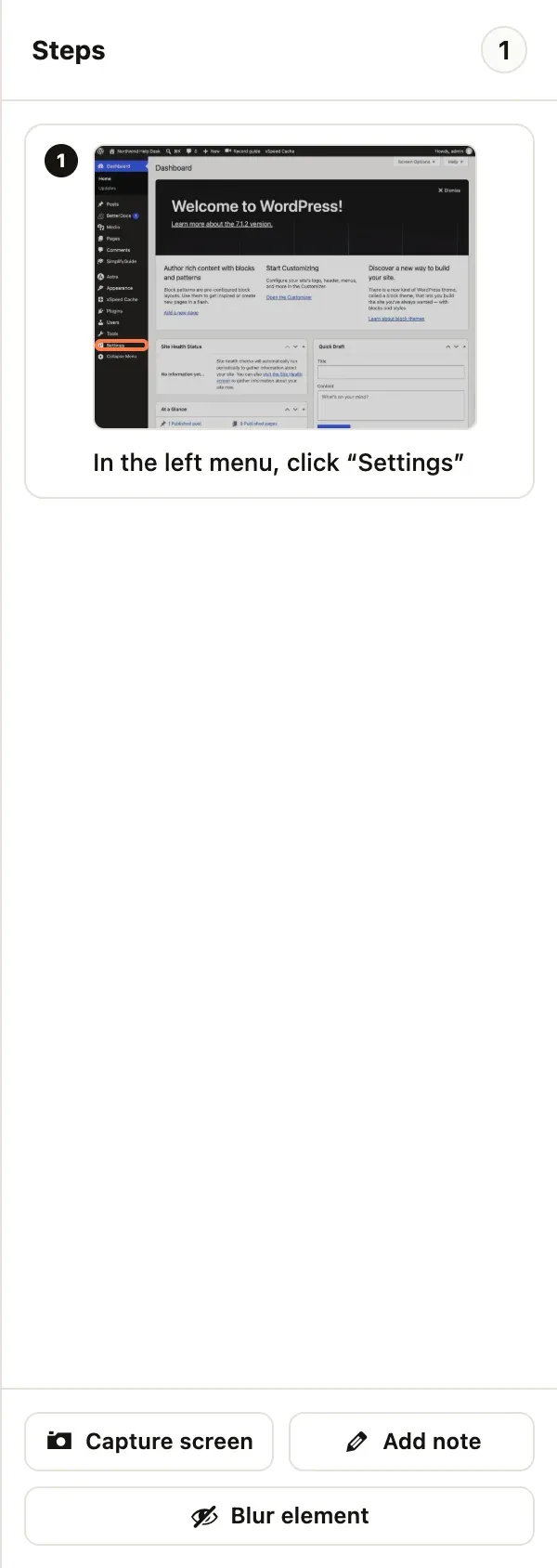
When you are done you should have four steps:
- In the left menu, click “Settings”
- Type “…your title…” in “Site Title”
- Type “…your tagline…” in “Tagline”
- Click “Save Changes”
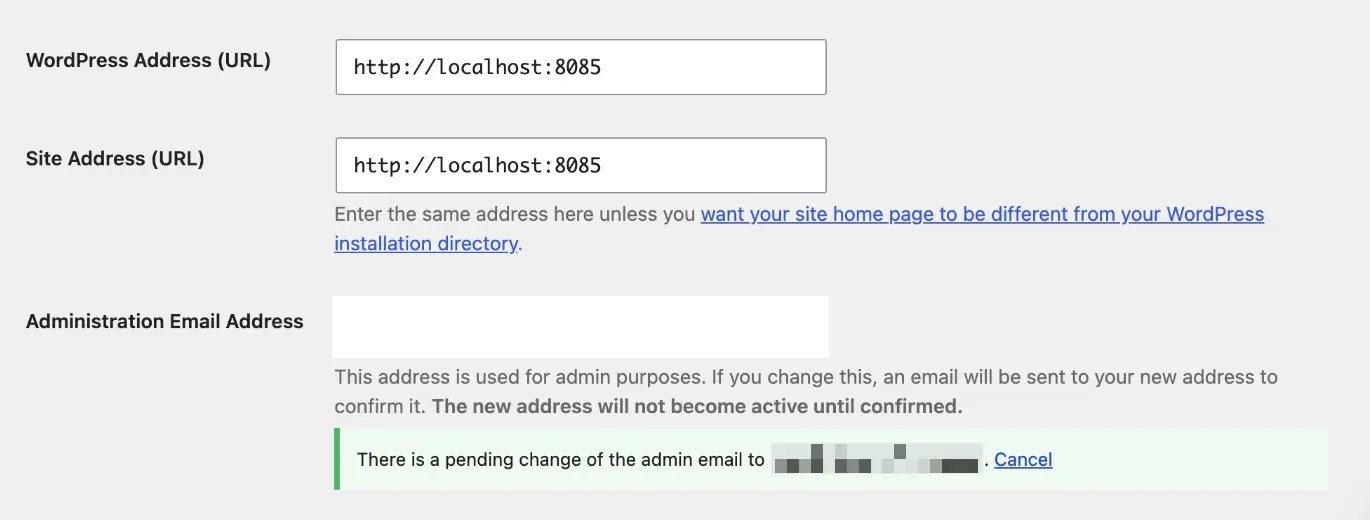
General Settings also shows your administration email address. With Smart Blur on, it is pixelated in the screenshots before they are uploaded.
If you click something by mistake, press the × (Remove step) on that step in the panel.
4. Finish
Press Finish. SimplifyGuide saves the last steps, names the guide and opens it in the editor.
Because you left the title empty, the guide is named from its steps. “Save Changes” is the committing action, but “Changes” says nothing about what changed, so the name comes from the page heading instead: Update General Settings. If a guide with that name already exists, it becomes Update General Settings (2). See Automatic titles.
5. Tidy it in the editor
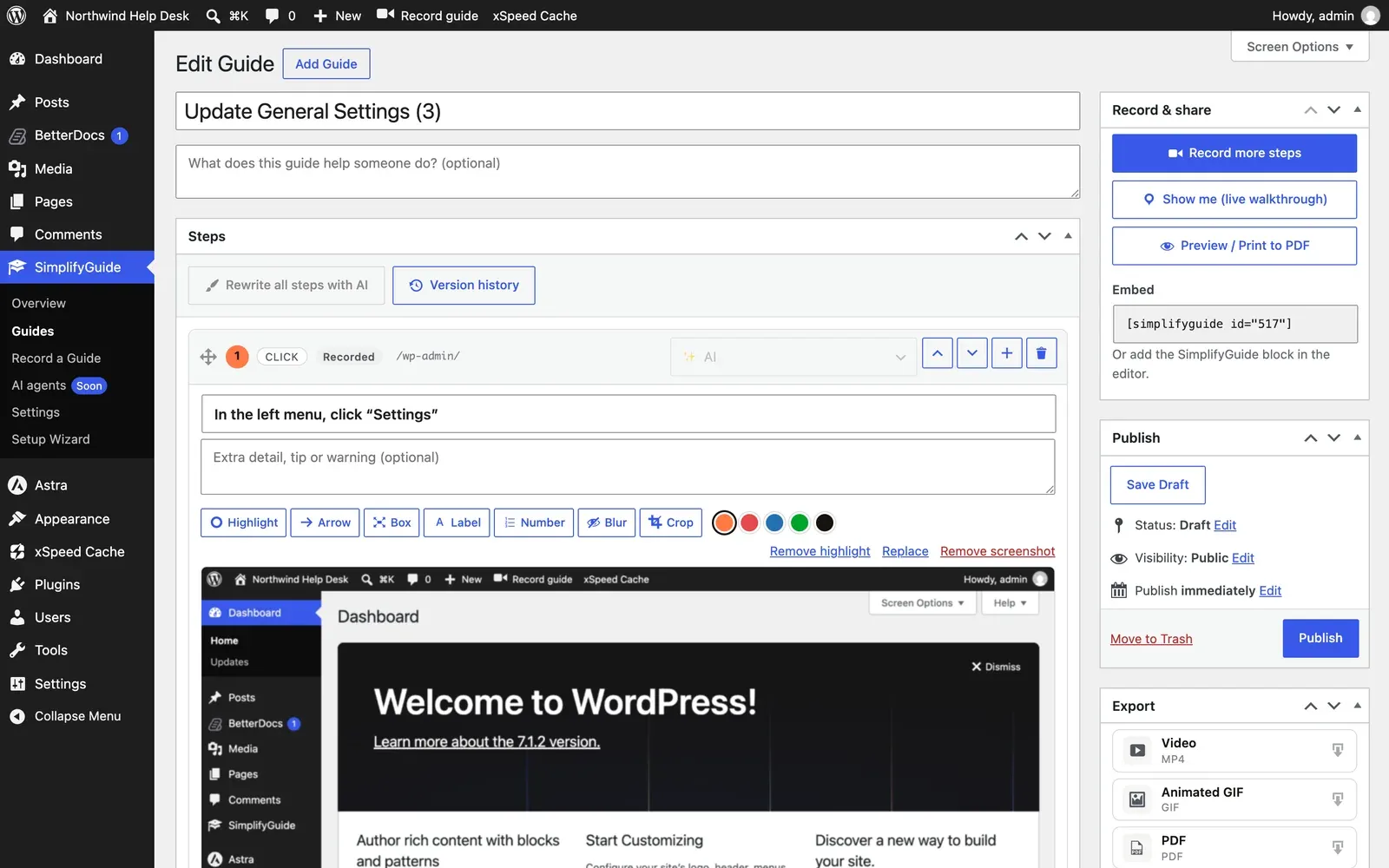
The guide is saved as a draft. The guide editor page covers every control; here is the short version. Each step is a card with its instruction, an optional note, and its screenshot. For this guide, you might:
- Add a description under the title, such as “Change the name and tagline shown in the browser tab and search results.”
- Add a note to the Tagline step, for example “Keep it under ten words.”
- Draw an arrow or a box on a screenshot with the annotation tools above it.
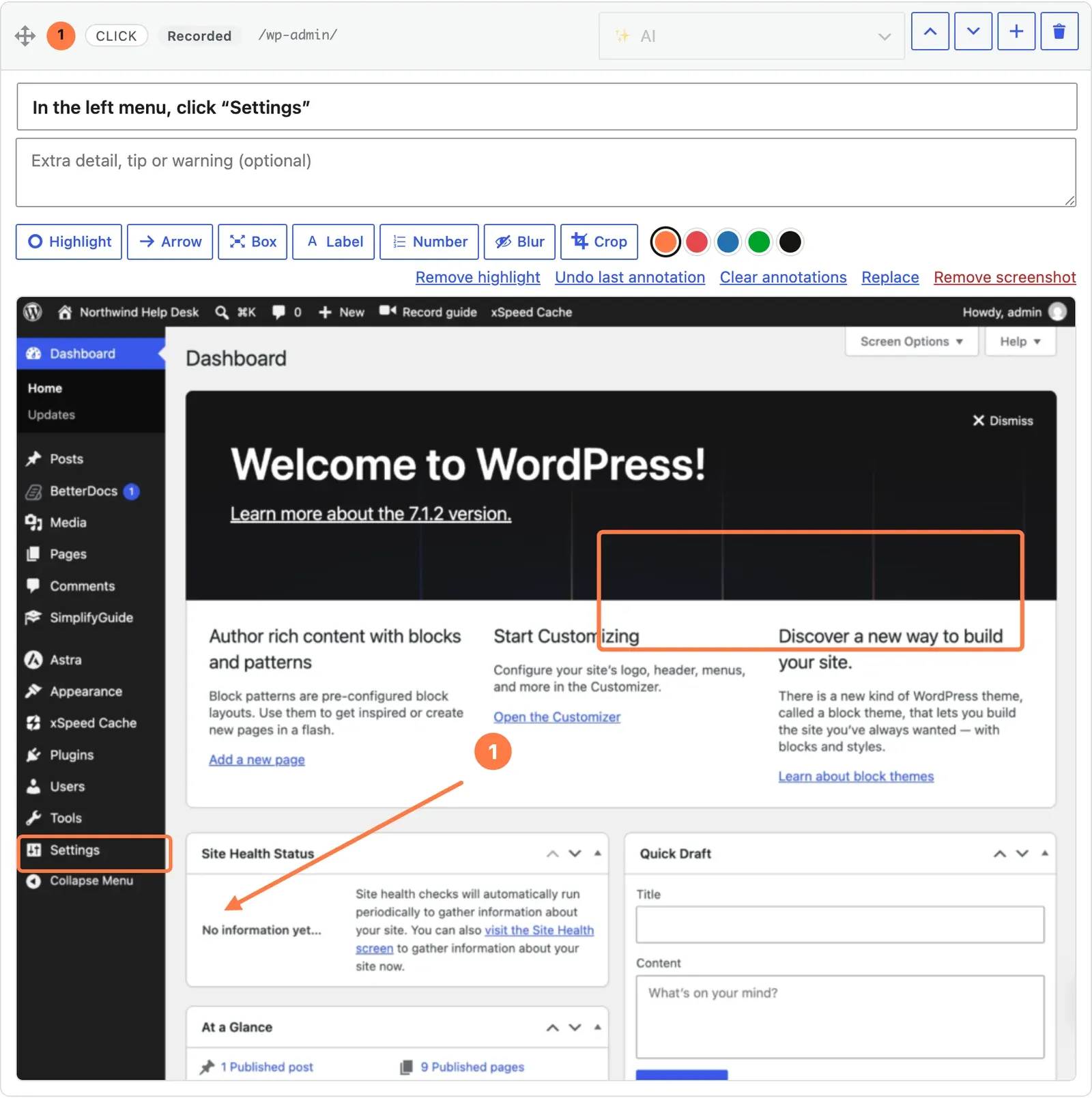
6. Publish
In the Publish box, press Publish.
Published guides appear in the Help Center for the roles in Who sees this guide — by default, whatever you chose in the setup wizard. Drafts are only visible to people who can edit them.
7. Show me
In the Record & share box, press Show me (live walkthrough).
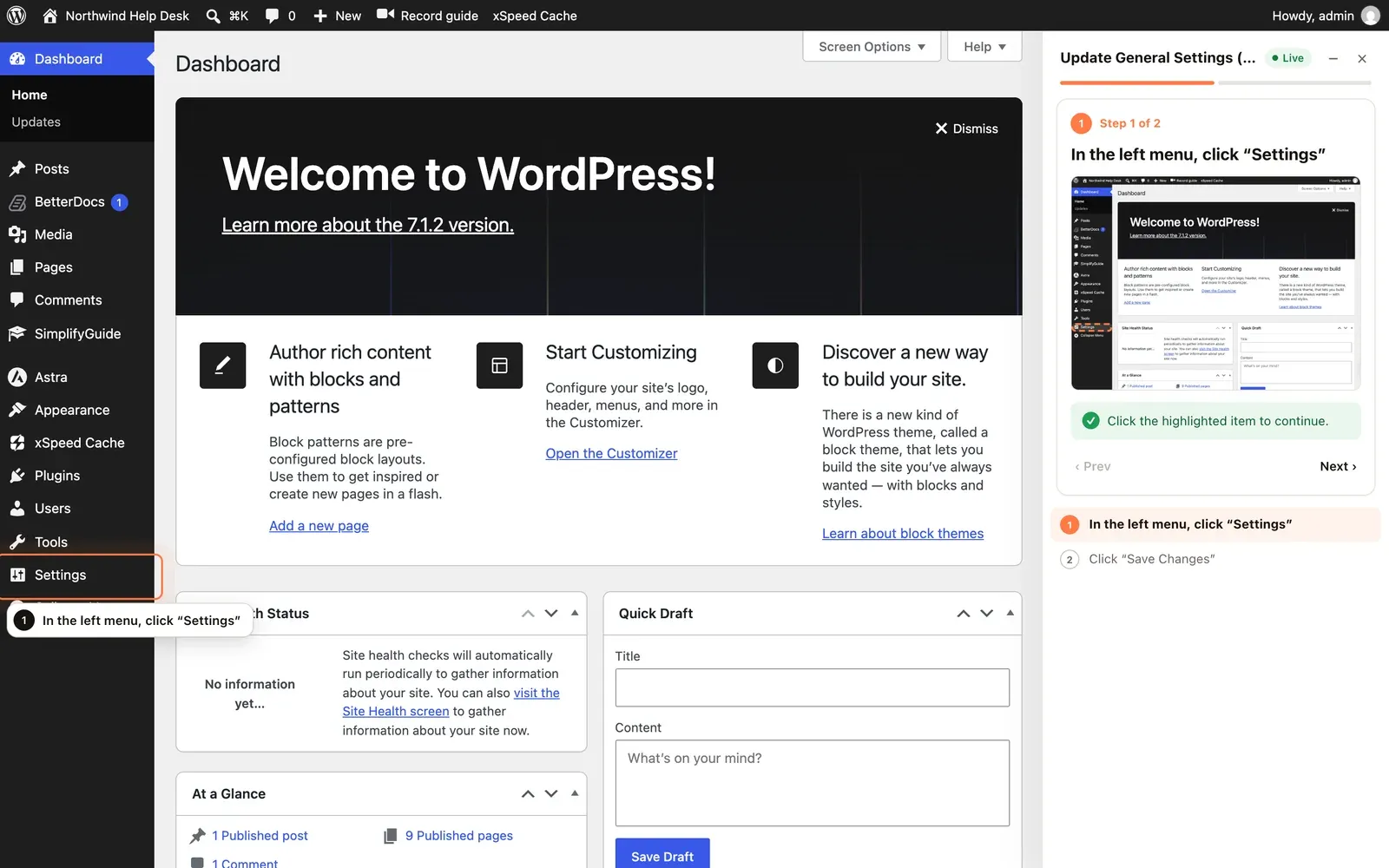
SimplifyGuide opens the screen where the guide starts and highlights the first thing to click — Settings in the left menu — with a panel on the right that lists every step. Click the highlighted item and the walkthrough moves to the next step. This is what your readers get when they press Show me on a guide in the Help Center. See Show me.
Next
- Learn every control in the recorder.
- Talk while you record with voice narration.
- Add more steps to this guide later with Record more steps — see Recording more steps into a guide.