Public guides
What the Public setting does, what it does not do, and what to check before you let visitors see a guide.
Guides are private to your site’s logged-in users by default. The Public setting lets people who are not logged in see a guide — but only where you have embedded it.
Making a guide public
- Open the guide in the editor.
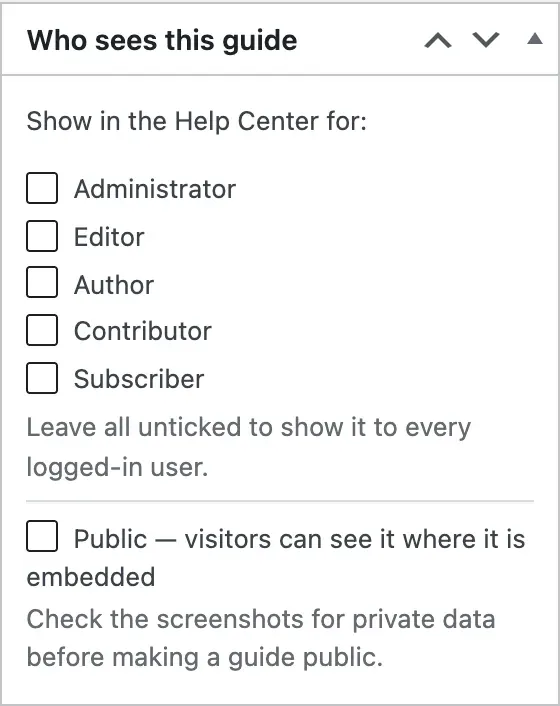
- In Who sees this guide, tick Public — visitors can see it where it is embedded.
- Press Update (or Publish).
- Embed the guide on a page with the SimplifyGuide block or the shortcode, if you have not already.
Public guides get a Public badge on their card in the Guides dashboard, and the Public filter lists them all.
What Public means
- Visitors can see the guide wherever it is embedded — on any post or page that contains its block or shortcode, whether or not they are logged in.
- Every logged-in user can see it, whatever roles are ticked. A public guide appears in the Help Center of every user, including roles you left unticked, and they can run Show me on it and download it.
- It must be published. A draft is never shown to visitors, public or not.
What Public does not mean
- There is no standalone public address. SimplifyGuide does not create a page for the guide on your site. Visitors see it only on the pages where you put it. If you have not embedded it anywhere, ticking Public shows it to no one outside your site.
- It is not listed or indexed on its own. Guides are not in your site’s search, archives or sitemap. The page you embed it on is indexed like any other page.
- Visitors cannot run Show me. The walkthrough is for logged-in users, on the screens they have access to.
- It does not lock the screenshot files. Screenshots are ordinary files in your Media Library. As with any upload, someone who has a file’s address can open it, public guide or not. Blur or remove anything that must not be seen.
- It does not share the guide outside your site. Cloud share links that work without your site are planned for SimplifyGuide Pro.
Check the screenshots first
A public guide shows its screenshots to anyone who can open the page. The box says it plainly: Check the screenshots for private data before making a guide public.
Before ticking Public, go through every step and look for:
- Personal data — names, email addresses, phone numbers, addresses in lists and forms.
- Keys and secrets — API keys, licence keys, tokens, passwords typed into fields.
- Internal details — order totals, customer lists, admin notices, plugin names you would rather not advertise, file paths.
- The admin bar and menus — they show your username and what is installed.
Smart Blur hides many of these automatically while you record, but it can only hide what it recognises. For anything it missed, use Blur in the editor — it replaces the screenshot and deletes the unblurred original. Or Crop the screenshot down to the part that matters. See Annotations and Privacy and Smart Blur.
The step text is public too. Recorded instructions name the buttons and fields you used — read them through as well.
Making a guide private again
Untick Public and press Update. Visitors immediately see nothing where the guide was embedded. Anyone who already downloaded or printed it keeps their copy.