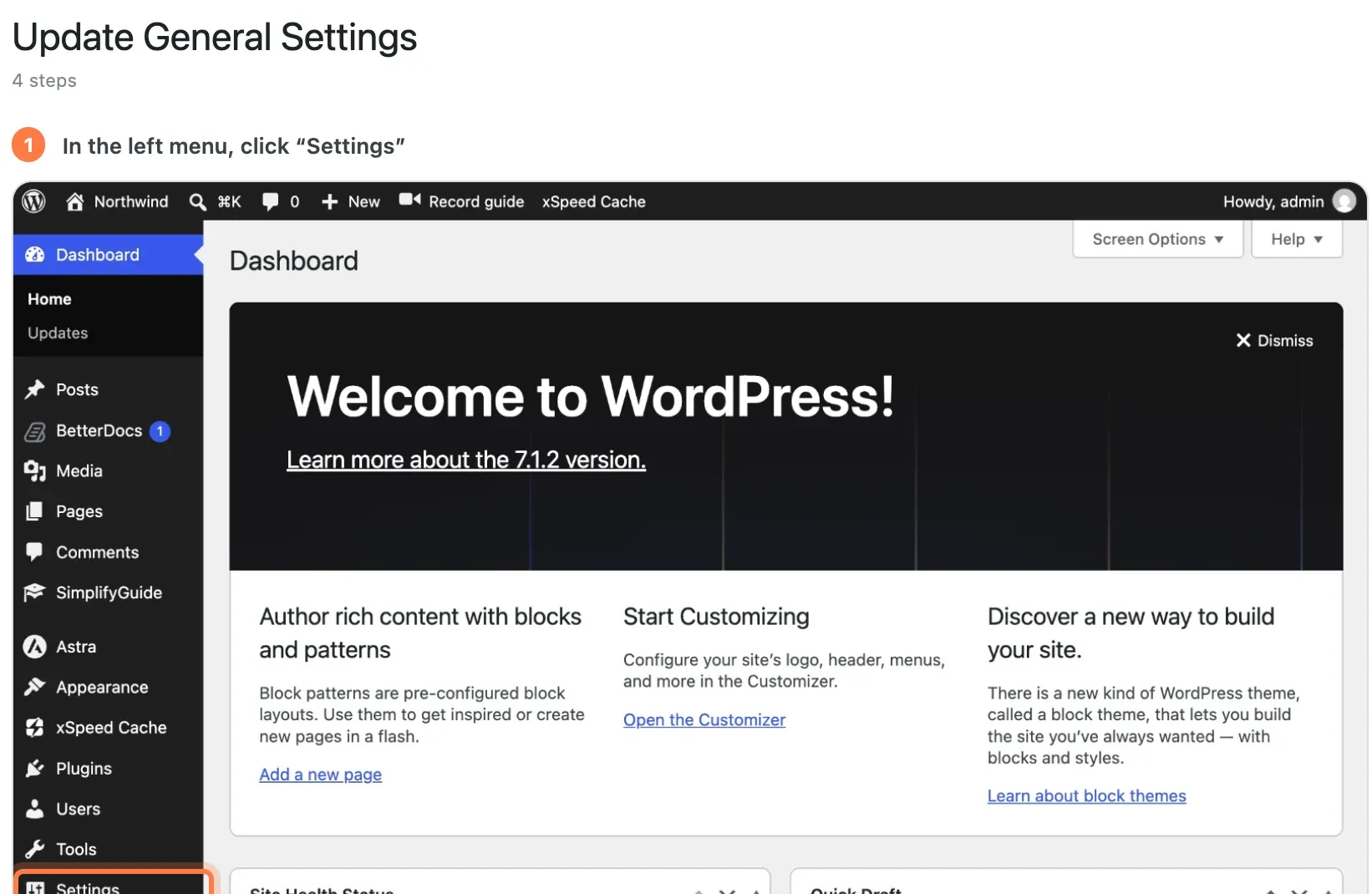
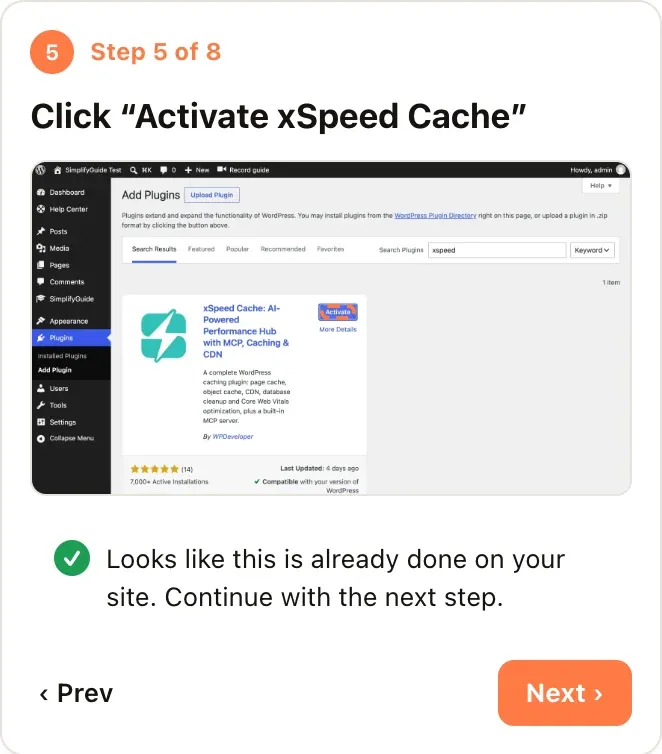
SimplifyGuide records any task in WordPress as a step-by-step guide with screenshots, blurs anything sensitive before it is saved, and walks people through it on the real screen. It runs on your own site, with your own AI key or none at all — free, with no seats to count.
Every picture here was recorded with SimplifyGuide on a stock WordPress install.
01
Record by doing
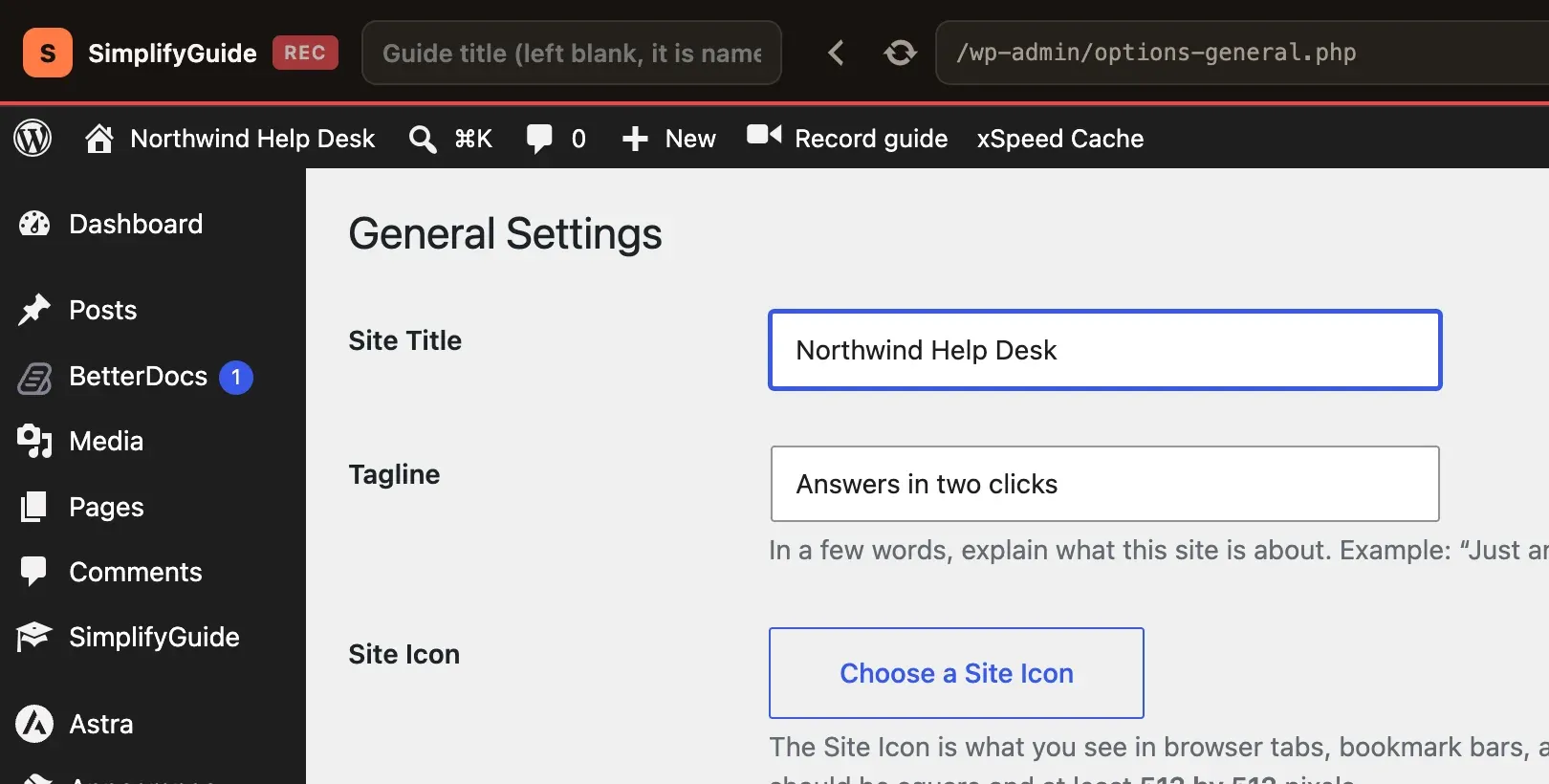
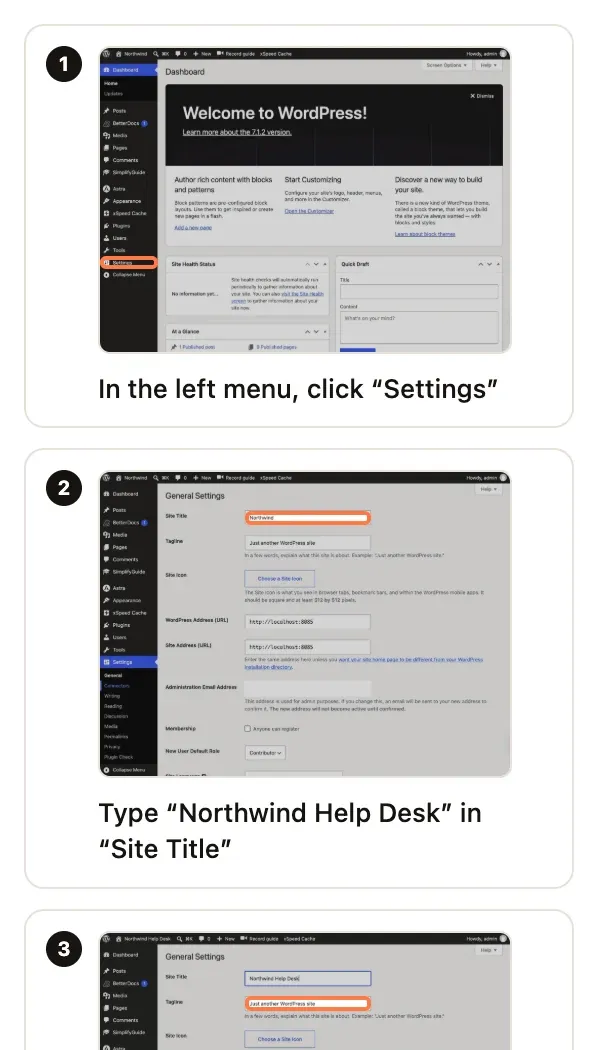
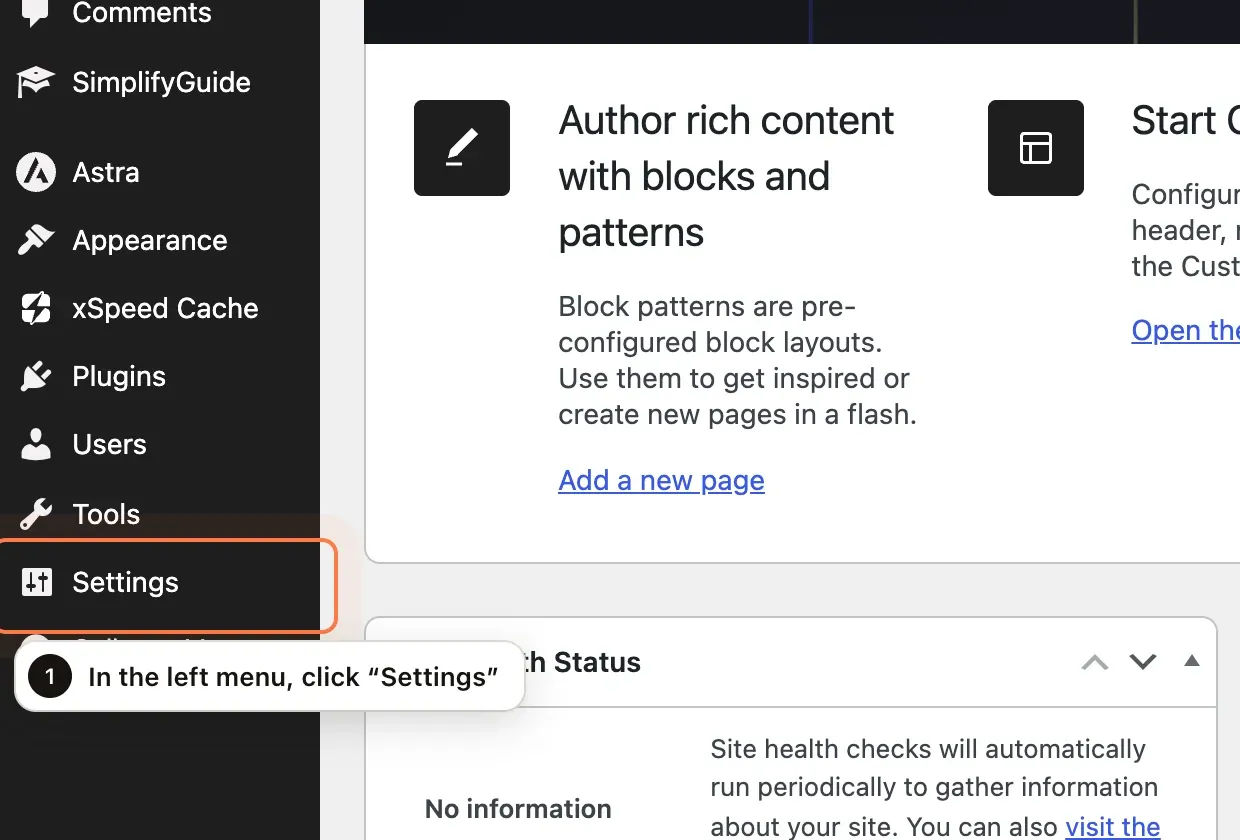
Press Record and use your site the way you always do. Every click, field and choice becomes a step with a screenshot and a plain-language instruction, while the steps panel fills in beside you.
Clicks, typing, dropdowns, drag and drop and shortcuts
Voice narration becomes notes on the right step
Named for you when you leave the title empty
Recording
02
Show me, on the real screen
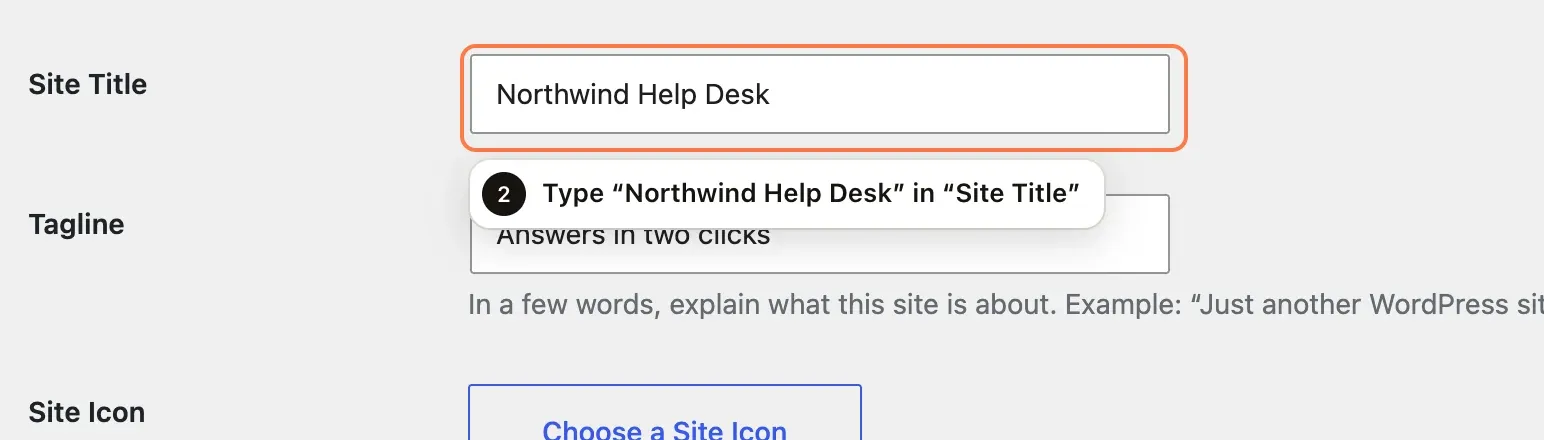
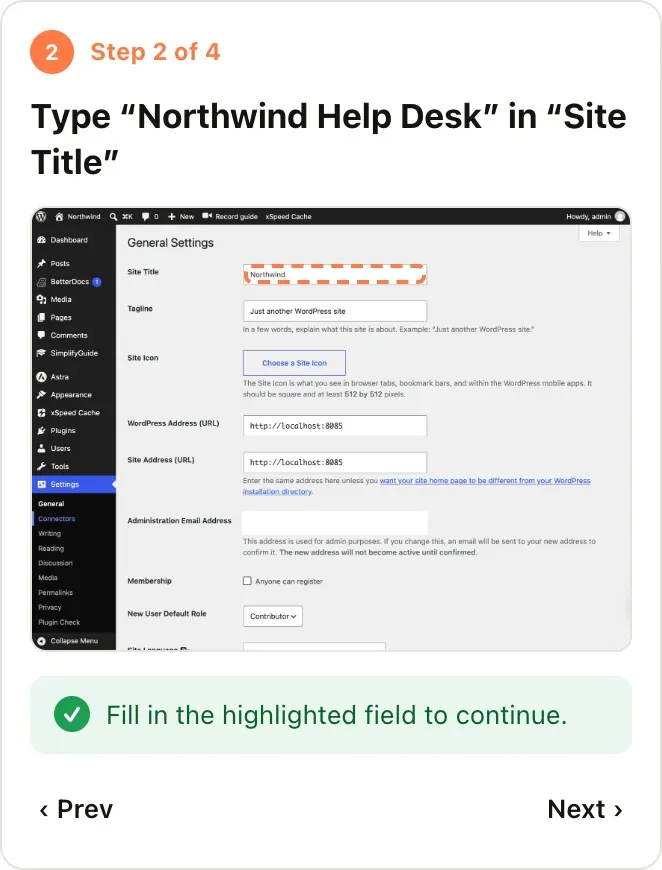
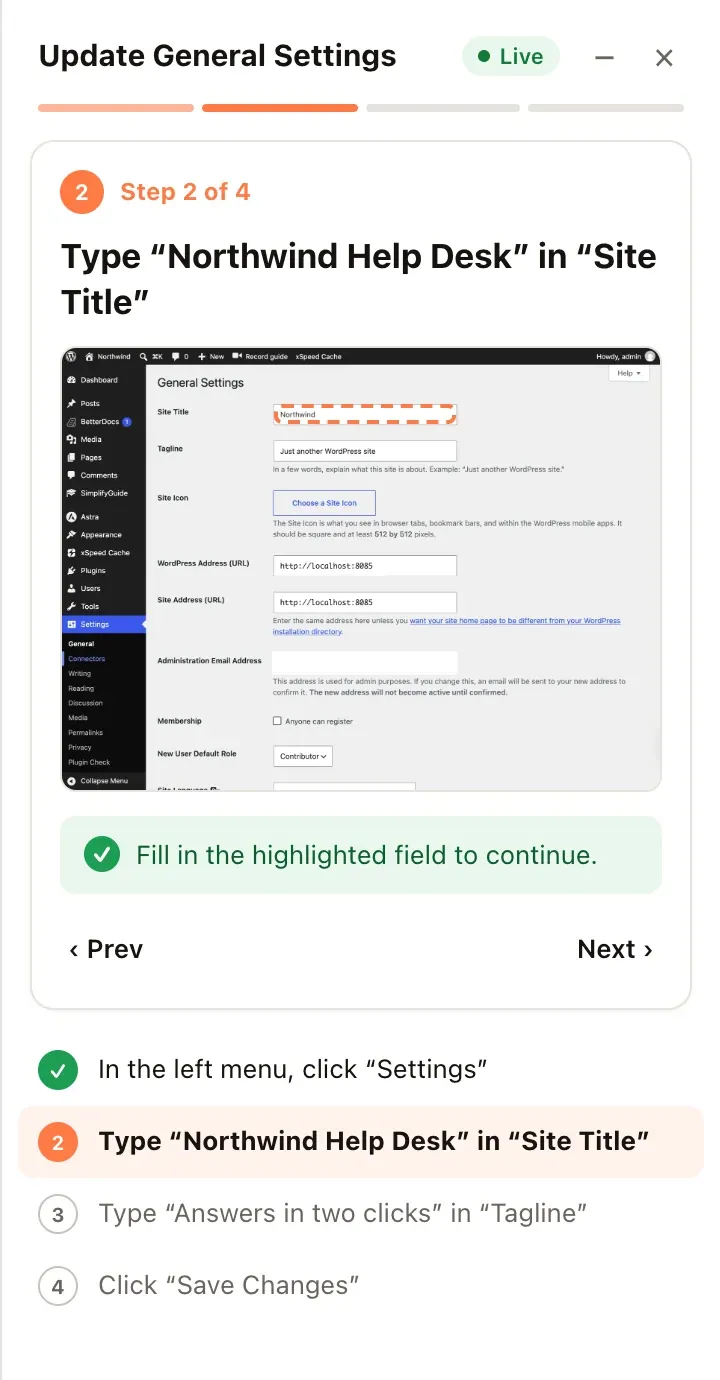
Readers never compare a screenshot with their own screen. Show me outlines the real field or button in their WordPress, explains what to do next to it, and moves on as soon as they do it.
Advances by itself when the step is done
Takes readers to the right screen when they are elsewhere
Side panel with every step, minimise at any time
Live
03
Sensitive data never reaches the screenshot
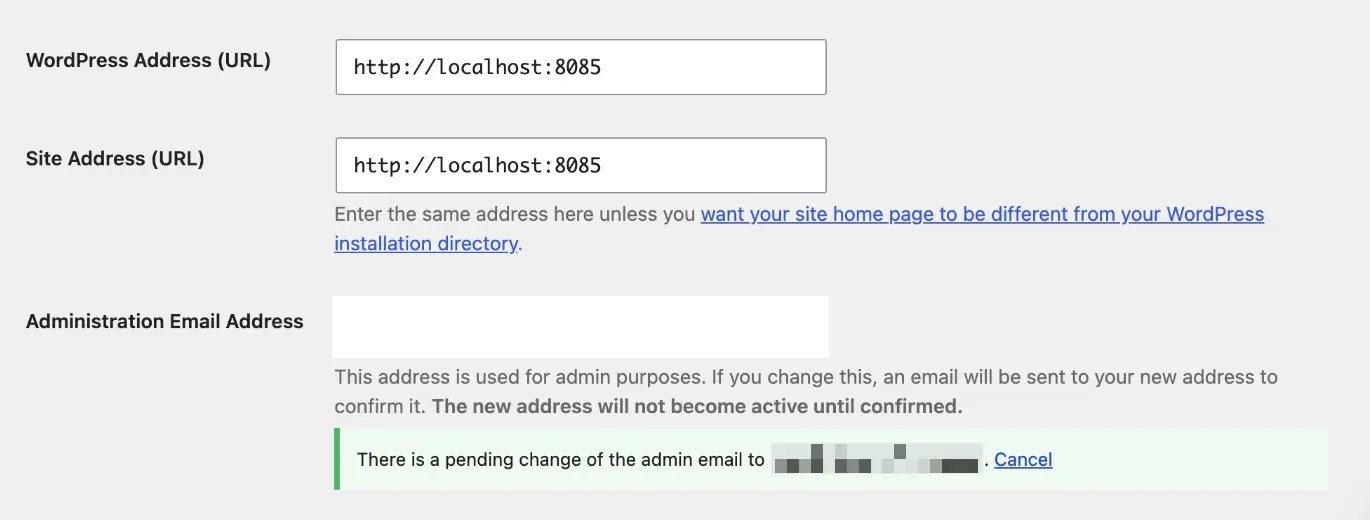
Smart Blur finds email addresses, phone and card numbers, IP and MAC addresses and API keys, and pixelates them in the browser before the image is uploaded — so an unblurred original never exists.
Seven categories, each one on or off
Blur any other element with one click
Filled-in password fields are always blurred
Blurred before upload
04
Edit, annotate, rewrite
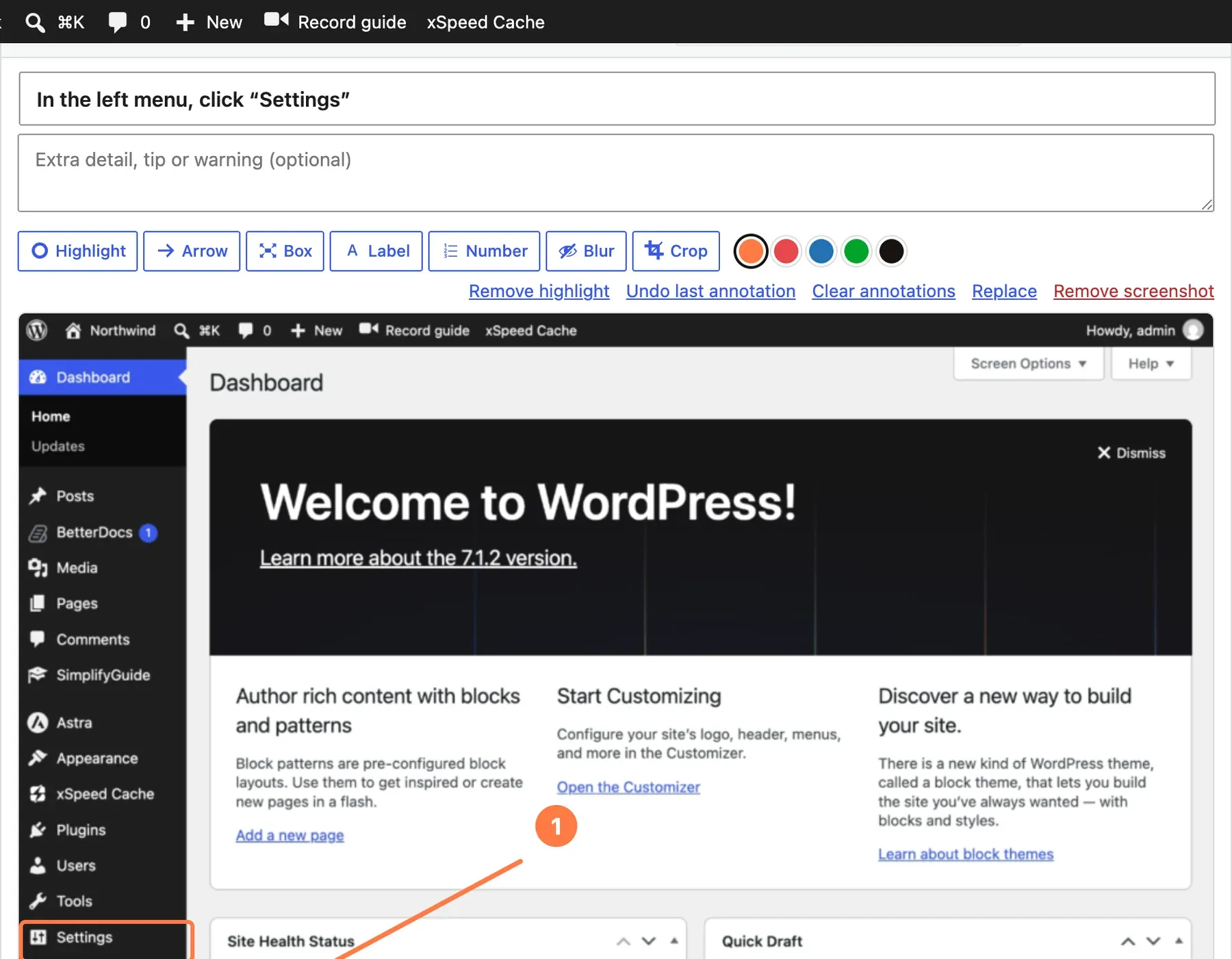
Every step is editable: the instruction, a note, the screenshot. Point things out with arrows, numbers, boxes and labels, and let AI tidy the wording — or not.
Highlight, arrow, box, label, number, blur and crop
Rewrite one step or all of them with your own AI
Version history with one-click restore
05
One guide, every format
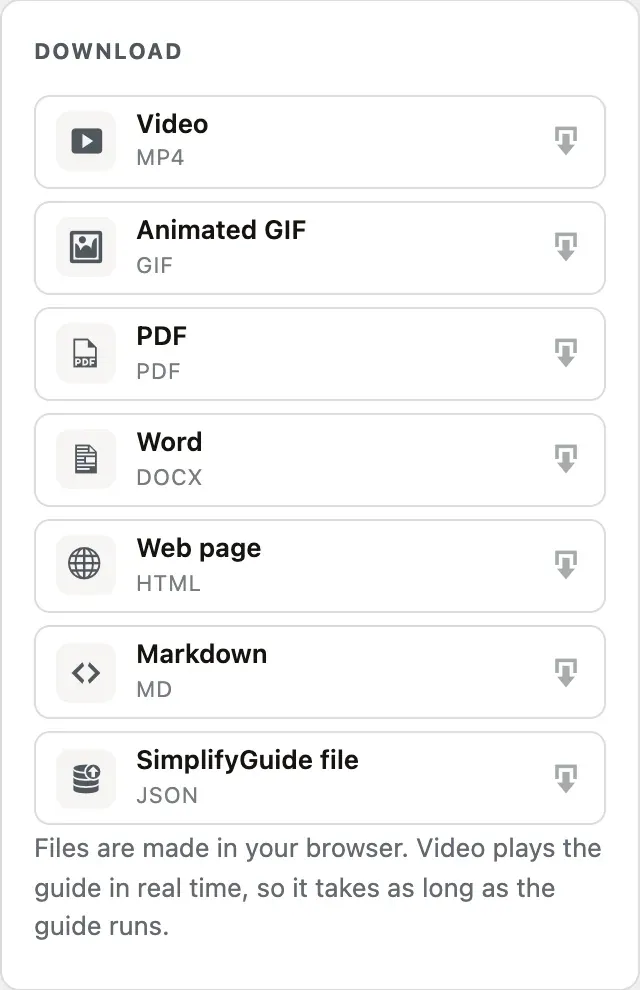
Publish it to your Help Center, embed it with a block, share a public link, or download it — branded with your logo and colour.
MP4 and GIF with a camera that follows the cursor
PDF and Word for print and email
HTML, Markdown and JSON for anywhere else
06
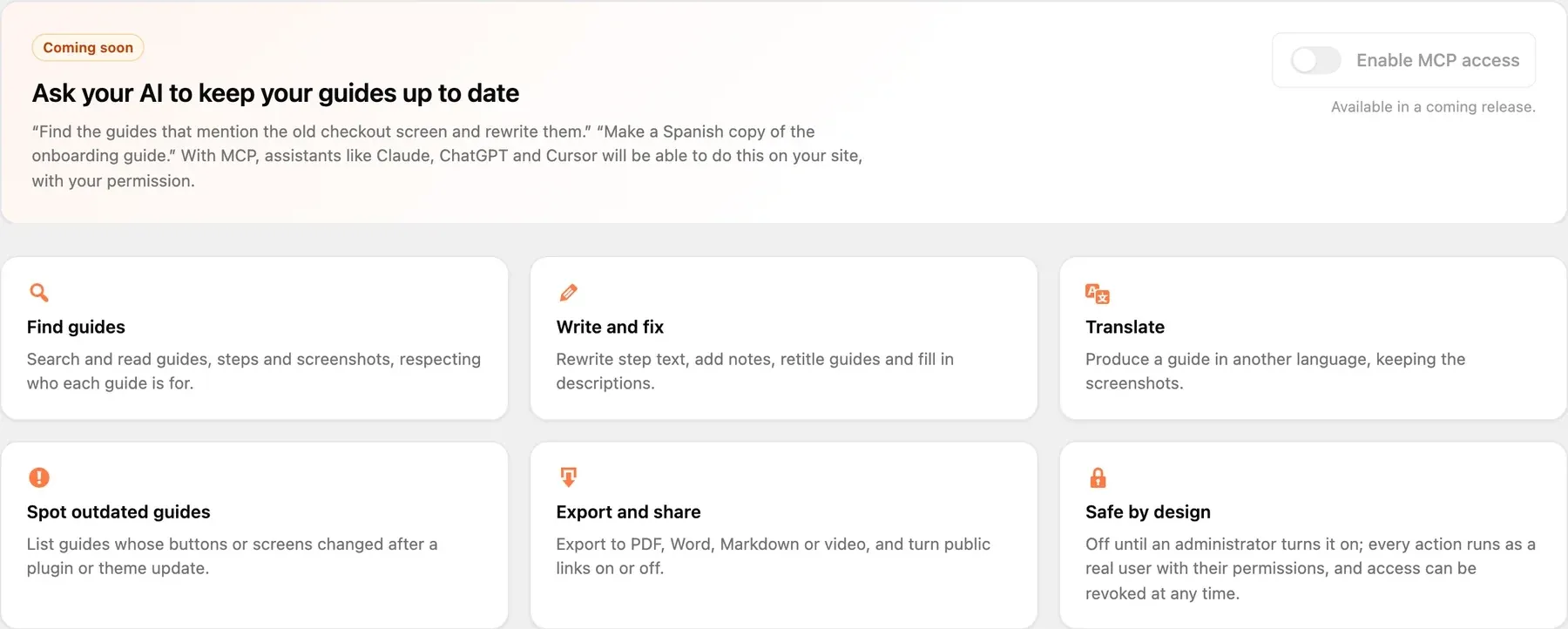
Context for AI agentsComing soon
Your guides are how work is actually done on your site. The MCP server will let Claude, ChatGPT or Cursor find, read and keep them up to date — from your server, as a real user with that user's permissions.
Off until an administrator turns it on
Read-only mode, revocable access
No API key or AI provider needed on the site
A walkthrough that knows where you are
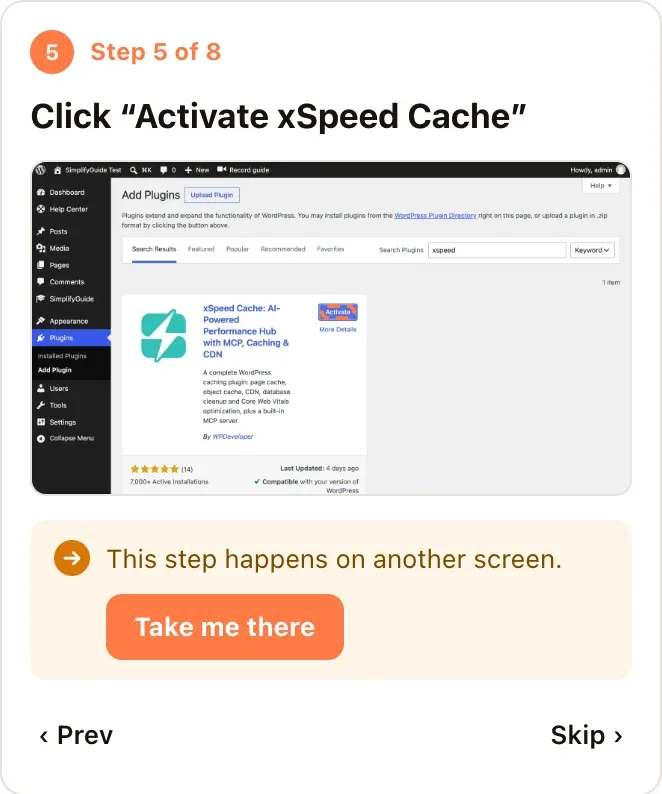
Real sites never match the recording exactly. Show me says what is going on instead of pointing at the wrong thing.
Live
Found it
The step's element is on this screen: it is outlined, and the guide moves on when the reader uses it.
Other page
On another screen
The step was recorded somewhere else — another page, other search results. One click takes the reader there.
Done
Already done
The plugin is already active, the setting already saved. Show me notices, says so, and lets the reader move on.
Capture.
Documentation that writes itself while you work, anywhere in wp-admin and on the front end.
Clicks, fields and choices
Buttons, links, menus, checkboxes, dropdowns, typed text, drag and drop and keyboard shortcuts are all recorded. Each step keeps the element it happened on, so it can be found again later — which is what makes Show me possible.
Voice narration
Talk while you record. The narration is kept with the guide and, with a speech-to-text provider, becomes a note on the step you were on when you said it.
Front end too
Start a recording from the toolbar on any page of your site — a checkout, a member area, a course — not only the admin screens.
Named for you
Leave the title empty and the guide is named from what you did — “Install and activate xSpeed Cache”, “Update General Settings” — and kept unique.
Notes and extra screenshots
Add a tip, a warning or a screenshot of the current screen as its own step, mid-recording.
Write.
Clear instructions without writing them — with the AI you choose, or none.
Your AI, your key
Anthropic, OpenAI, DeepSeek, OpenRouter, Groq, any OpenAI-compatible server — including one on your own machine — or the AI connection already set up in WordPress. Only step text and a little page context are sent, never screenshots. Write in any language, independent of the admin language.
Plain instructions by default
Every step gets a readable instruction from the element's own label, with no AI and nothing sent anywhere.
Version history
Every change is kept. Compare, restore, and never lose a good version to a bad rewrite.
Protect.
Safe to record on a live site with real customers in it.
Smart Blur
Seven kinds of sensitive data are pixelated before the screenshot leaves the browser, and you choose which ones. Filled-in password fields are always blurred, and their values never reach a step.
Who sees what
Each guide can be limited to roles. Readers only ever see published guides meant for them; public links are opt-in, per guide.
Your Media Library
Screenshots are ordinary attachments on your own server, with random file names, removed with the guide.
Guide.
The difference between reading about a task and being walked through it.
Show me
A side panel lists the steps; the real element is highlighted on the live page and the guide advances when it is used. When a step belongs to another screen, it says so and takes you there. When it is already done, it tells you and moves on.
Help Center in wp-admin
Staff and clients find the guides meant for their role right where they work, with search and filters.
Setup in two minutes
A setup wizard on activation covers privacy, brand, AI and who sees new guides — and plays a sample walkthrough.
Share.
Open formats, so nothing you make is locked in.
Video that follows the cursor
MP4 or WebM rendered from the guide, with a smooth camera that follows the action instead of zooming in and out on every click, plus animated GIF for chat and email.
PDF and Word
Printable, branded documents with your logo, colour and footer.
HTML, Markdown and JSON
Drop a guide into a knowledge base, a README or another site, or move it between installs.
Embed and link
A block and a shortcode for any page, and public share links you can turn off at any time.
Built for teams — and the agents that help them
Anywhere someone asks “how do I…?” inside WordPress — your client, your staff, or the people using your own plugin — the answer can be a guide instead of a screen-share.
Plugin and theme makers
Onboarding for your own plugin
Record your plugin's setup once on your dev site. Ship it as a Show me walkthrough, an MP4 for your WordPress.org listing, GIFs for the readme and pages for your docs site — every format from one recording, re-recorded in minutes when your UI changes.
Agencies
Client handoff
Ship every site with its own manual: how to add a page, change a menu, post a product. Clients get a Help Center for their role, you get fewer support tickets.
WooCommerce
Store staff training
Refunds, coupons, order statuses and stock updates, recorded once on your own store and walked through by new staff on the real screens.
Support teams
Answers in a link
Reply with a guide, a GIF or a short video instead of a paragraph of “click here, then there”.
Onboarding
New editors and staff
Publishing checklists, SEO fields and media rules as guides new people can follow on their first day without a trainer.
Change management
After every update
When a plugin or WordPress changes a screen, re-record the flow and keep the old version in history. Show me tells readers when a step no longer matches the screen.
Courses and memberships
LMS and member sites
Instructor how-tos for your LMS, and front-end walkthroughs for members — account, billing, downloads.
AI adoption
Teach the new tools
Show editors how to use the AI features in WordPress and your AI plugins — recorded on your site, with your settings.
AI agents
Context for agentsComing soon
Let an AI assistant read how things are really done on your site, and keep the guides up to date for you, over MCP.
Privacy
Private by design, not by policy
Cloud guide tools need a security section to explain where your screenshots go. SimplifyGuide keeps them on your server — there is nothing to review.
Nothing leaves your site
Guides are WordPress posts and screenshots are Media Library files, in your database and on your disk. No SimplifyBase account and no vendor cloud are involved.
Blurred before it is saved
Smart Blur pixelates sensitive data in the browser, before upload, so an unblurred original never exists on the server.
Your AI, your terms
Bring your own provider and key, run a local model, or turn AI off. Screenshots are never sent to an AI provider.
Permissions you already have
Recording, editing, publishing and reading follow WordPress roles and capabilities. Keys are stored encrypted; every endpoint checks them.
Compare
How it compares
The capture tools below are good products built for many apps at once. SimplifyGuide is built for one: your WordPress site — and it is free.
Feature
SimplifyGuide
Scribe
Tango
Guidde
Price to start
Free, no seat limits
Free Basic; Team from $13 per seat a month, 5 seats minimum
Free for 5 workflows; paid from $15 per user a month
Free for 25 videos; paid from $19 per creator a month
Where your data lives
Your WordPress server
Scribe's cloud
Tango's cloud
Guidde's cloud
AI
Your own provider and key, a local model, or none
Built in
Built in
Built in
Automatic redaction of sensitive data
Free (Smart Blur)
Enterprise plan
Enterprise plan
Enterprise plan
Live walkthrough on the real screen
Free (Show me)
Pro plans
Enterprise plan
In-app video (Broadcast)
Exports
MP4, GIF, PDF, Word, HTML, Markdown, JSON
PDF, HTML, Markdown; Word on Team
PDF, Markdown, HTML on paid plans
Video, PDF, PowerPoint
Captures outside WordPress
Not yet — browser extension planned
Web and desktop
Web and desktop
Web, desktop and mobile
AI agents (MCP)
Planned
MCP and API
Not yet public
Not listed
Competitor details are taken from their own public pricing and product pages as of September 2026. Spotted something out of date? Tell us through the contact page and we will correct it.
How it works
Three steps, then it runs
01
Install
Add the plugin to any WordPress site. A two-minute setup wizard covers privacy, brand, AI and who sees new guides.
02
Record
Press Record and do the task. Steps, screenshots and instructions appear as you go; press Finish when you are done.
03
Share
Publish it to your Help Center, walk people through it with Show me, or export it as video, PDF, Word and more.
SimplifyGuide works with
WordPress
WooCommerce
Block editor
Anthropic
OpenAI
DeepSeek
OpenRouter
Groq
WordPress AI
WordPress
WooCommerce
Block editor
Anthropic
OpenAI
DeepSeek
OpenRouter
Groq
WordPress AI
Pricing
Priced on its own
No bundle to buy into. Cancel and you drop to the free plan rather than losing your data.
Free
Popular
$0forever
The whole recorder, walkthrough and exports, for any number of people.
Yes. Recording, Show me, Smart Blur, annotations, version history and every export format are in the free plugin, with no limit on guides or people. Pro will add hosted conveniences — AI without your own key and cloud share links — not features taken out of the free version.
Do my screenshots or data leave my server?
No. Guides are stored as WordPress posts and screenshots in your Media Library. If you turn on AI writing, only the step text and a little page context go to the provider you chose, never the screenshots.
Which AI providers does it work with?
Anthropic (Claude), OpenAI, DeepSeek, OpenRouter, Groq, any OpenAI-compatible server including one you run yourself, and the AI connection built into WordPress. AI is optional: without it every step still gets a clear, rule-based instruction.
What does Smart Blur hide?
Email addresses, phone numbers, US social security numbers, card numbers, IP and MAC addresses and common API key formats, in text and in form fields. You choose the categories, and can blur any other element by clicking it while recording.
How is Show me different from a product tour plugin?
Tour plugins make you build each tour by hand, element by element. Show me plays back a guide you recorded by simply doing the task, finds the same elements on the live screen, and copes when the reader is on the wrong page or has already done a step.
Can it record tools outside WordPress?
Not yet. It records anything inside your WordPress site, admin and front end. A browser extension that captures other web apps and publishes to your site is planned.
I make a WordPress plugin. Can I use it for my plugin's onboarding?
Yes — that is one of the best uses. Record the setup on your own site, then export it as video for your WordPress.org listing, GIFs for your readme, HTML or Markdown for your docs, and a SimplifyGuide file that any site running SimplifyGuide can import and play with Show me. A small player you can ship inside your own plugin, so the walkthrough runs for users who do not have SimplifyGuide, is planned.
Is SimplifyGuide a Scribe, Tango or Guidde alternative?
For work that happens in WordPress, yes — with the difference that it is free, self-hosted and uses your own AI. For documenting many SaaS tools across a company, those products capture more places today.
Which languages does it support?
The interface is available in English, Chinese, Spanish, Portuguese, French and German, and AI-written steps can be produced in any language you set.
Where do I download it?
Ask for it through the contact page and we will send the plugin the same day. The WordPress.org listing is on its way; once it is live, the download button here will point straight to it.
The rest of the family
Each one stands alone. Use one, use all five, or use one and ignore the others entirely.