Privacy and Smart Blur
What Smart Blur detects, how blurring happens in your browser, what SimplifyGuide stores and where, what AI providers receive, and what uninstall removes.
SimplifyGuide runs on your site. Guides are WordPress posts, screenshots and narration are files in your Media Library, and nothing leaves your server unless you add an AI key — and then only to the provider you picked.
Smart Blur
While you record, SimplifyGuide looks for private data on the screen and pixelates it in your browser, before the screenshot is uploaded. The unblurred image never reaches your server.
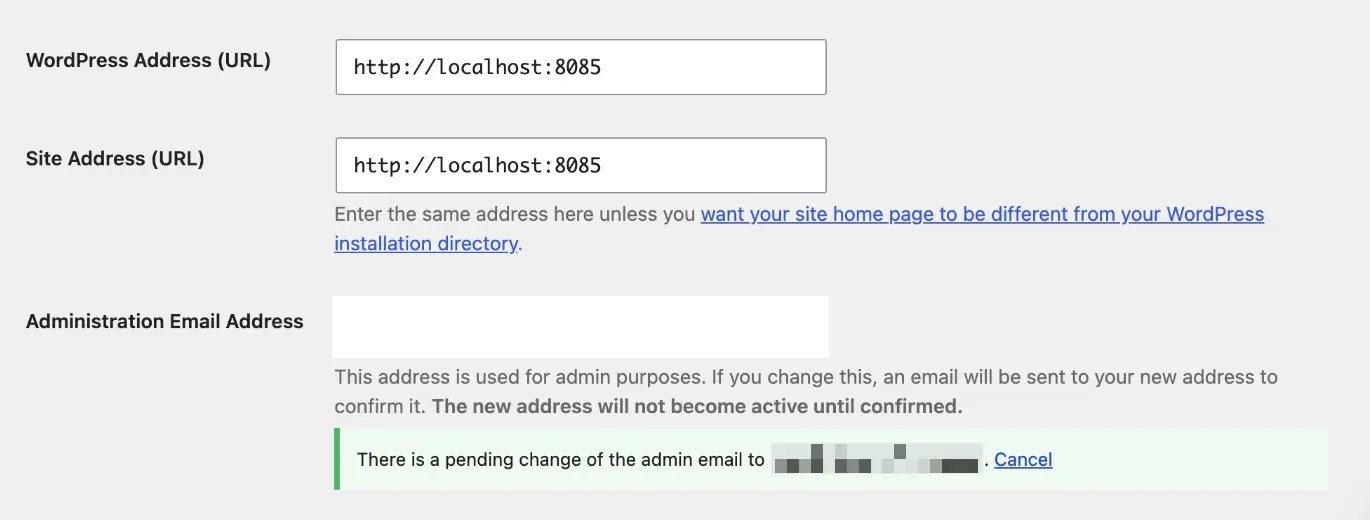
Pixelation uses coarse blocks rather than a soft blur. A soft blur can sometimes be sharpened back into readable text; coarse blocks cannot.
Categories
Each category has its own switch under Settings → General → Smart Blur. All are on by default.
| Category | What it matches |
|---|---|
| Email addresses | Anything shaped like name@example.com |
| Phone numbers | UK mobiles (07…, +44 7…), UK landlines (020…, 01…, +44 …), international numbers written with a +, and North American numbers ((555) 123-4567, 555-123-4567) |
| Social Security numbers | US format 123-45-6789 |
| Credit card numbers | 13 to 19 digits, with or without spaces or dashes, that pass the Luhn checksum |
| IP addresses | IPv4 (203.0.113.7) and full-form IPv6 (eight groups) |
| MAC addresses | 00:1a:2b:3c:4d:5e or with dashes |
| API keys and secrets | Stripe-style sk_live_…, pk_test_…, rk_…; sk-… keys including sk-ant-… and sk-proj-…; GitHub tokens (ghp_…, gho_…, ghu_…, ghs_…, ghr_…); AWS access key IDs (AKIA…) |
Checks keep false alarms down:
- A card number must pass the Luhn checksum, so a 16-digit order number usually will not be blurred.
- Phone numbers, IPv4 addresses and SSNs are not blurred when they follow
a label such as
Order #,Ref,Invoice,ID,SKU,Tracking,Ticket,AccountorVersion— the usual sources of look-alikes.
Detection works on text: field values and the visible text of the page, including inside the block editor’s canvas. It cannot read text that is part of an image. For that, use the editor’s Blur tool (below).
Password fields
Password fields with anything typed in them are always pixelated in screenshots, even with every Smart Blur category switched off, and their values are never written into step text.
Share the tab, not a window
Smart Blur and Blur element work on screenshots cropped to your site, which is what you get when you share This tab in a Chromium browser (Chrome, Edge, Brave, Opera). If you share a whole window or screen instead — and Firefox and Safari always do — the recorder cannot map page elements onto the picture, so it could not blur anything. Rather than save unblurred screenshots, it records the steps without screenshots and tells you so. To get screenshots, record again in Chrome or Edge and share This tab.
Step text
The switches control what is pixelated in screenshots. The check that keeps values out of step text always uses every category. If you type an email address into a field, the step reads Fill in “Email”, not the address, even with the email switch off.
Blur element while recording
For anything Smart Blur does not recognise — a customer name, an internal note — press Blur element at the bottom of the recorder panel, then click the element on the page. It is blurred in every screenshot for the rest of the guide, and in the live page too, so you can see it worked. Click it again to unblur. Press Blur element again when you are done.
A blurred element’s value is also kept out of step text and out of the context sent to AI. The guide remembers up to 50 blurred elements, so recording more steps later keeps them hidden.
Blur after the fact
Missed something? In the editor, choose the Blur tool on a step’s screenshot and drag over the area. The pixelated copy replaces the original everywhere, and the original file is deleted, so the private version does not linger in your Media Library. See Annotations.
What is stored, and where
| What | Where |
|---|---|
| Guides | Posts of the private simplifyguide post type. Not reachable on the front end by URL. |
| Steps | One post meta entry per guide, _simplifyguide_steps |
| Version history | Post meta _simplifyguide_history, up to 20 versions and about 1 MB per guide |
| Audience, Public flag, start page, blurred elements | Post meta _simplifyguide_audience, _simplifyguide_public, _simplifyguide_start_url, _simplifyguide_blur |
| Screenshots | Media Library attachments, attached to the guide |
| Narration | One Media Library audio file per guide, attached to the guide |
| Settings | Options simplifyguide_settings and simplifyguide_ai (API keys encrypted) |
Steps also store a little page context — element type, nearby heading, page title — used only to help AI write the step. It is never shown to readers and is stripped from the REST response for anyone who cannot edit the guide.
Screenshot and narration files
Files are uploaded under random names like sg-3f9c…e1.webp, so they
cannot be guessed from the guide or listed by walking numbers. Like all
WordPress media, though, anyone who has a file’s exact link can open it.
Check screenshots before you make a guide public.
When a guide is permanently deleted (emptied from Trash), its screenshots and narration are deleted with it. Files you have since reused elsewhere in the Media Library are left alone.
What AI providers receive
Nothing, unless you add a key. With a key, requests go from your server straight to the provider:
- Writing steps: the guide title and each step’s action, current text, element label, page path and page context.
- Rewriting: the one piece of text you asked to rewrite.
- Transcribing: the narration audio.
Screenshots are never sent. AI providers has the full list.
Uninstalling
Deactivating SimplifyGuide deletes nothing.
Deleting it from Plugins removes data only if Settings → Advanced → Delete data on uninstall is on. It is off by default, so a reinstall does not lose your guides.
With it on, deleting the plugin removes:
- every guide, in any status, including Trash;
- every screenshot and narration file attached to a guide;
- the
simplifyguide_settingsandsimplifyguide_aioptions, including your API keys.
Media you uploaded yourself and reused in a guide — a logo, an image you picked from the Media Library — is not a SimplifyGuide file and is left alone.