Setup wizard
Every step of the SimplifyGuide setup wizard, what each one saves, and how to run it again.
The setup wizard opens once, right after you activate SimplifyGuide. It checks your site, then asks four questions: what to blur, how to brand guides, whether to use AI, and who sees new guides. It takes a couple of minutes.
Each step is saved as soon as you press Continue, so leaving half-way keeps what you already chose. Everything the wizard sets can be changed later under SimplifyGuide → Settings.
At the bottom of each question step you have three buttons:
- Continue saves the step and moves on.
- Skip this step moves on without saving that step’s choices.
- Back returns to the previous step.
Skip setup, top right, marks setup as done and takes you to the Guides dashboard.
Welcome
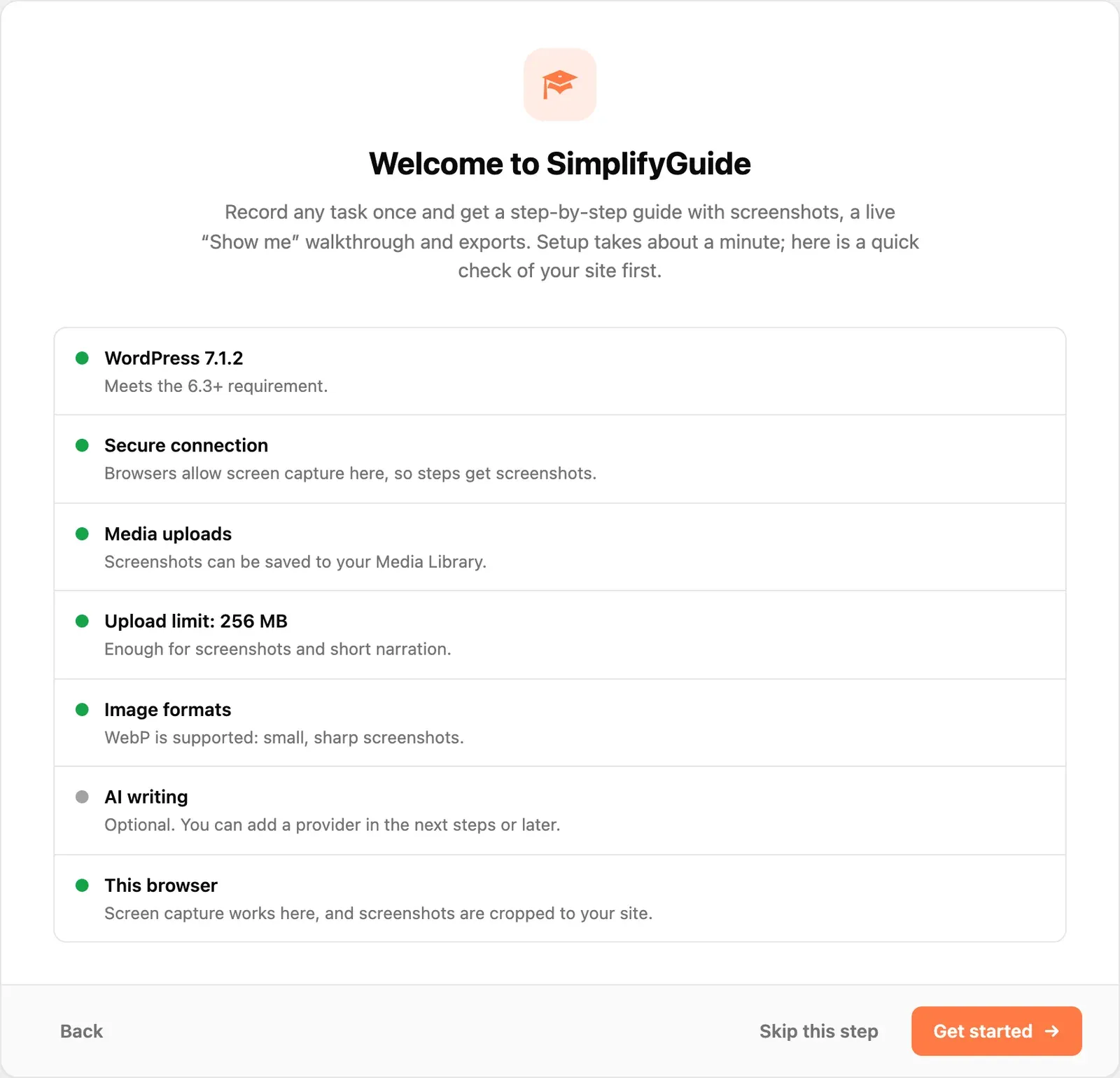
A quick check of your site. Nothing is saved here; the list tells you whether anything will limit what SimplifyGuide can do.
| Check | What it tells you |
|---|---|
| WordPress | Whether your version meets the 6.3+ requirement. |
| Secure connection / No HTTPS | Browsers only allow screen capture on HTTPS (or localhost). Without it, steps are recorded without screenshots. |
| Media uploads | Whether screenshots can be saved to your Media Library. |
| Upload limit | Your server’s maximum upload size. Below 8 MB, long narration may not upload. |
| Image formats | Whether the server can handle WebP. If not, JPEG is used. |
| AI writing | Whether WordPress already has an AI connection SimplifyGuide can use. Optional either way. |
| This browser | Whether the browser you are using can capture the screen, and whether it crops screenshots to your site (Chrome and Edge) or includes the whole window. |
An amber dot is a warning, not a blocker. You can still record; see Installation for what each one means.
Press Get started to continue.
Privacy
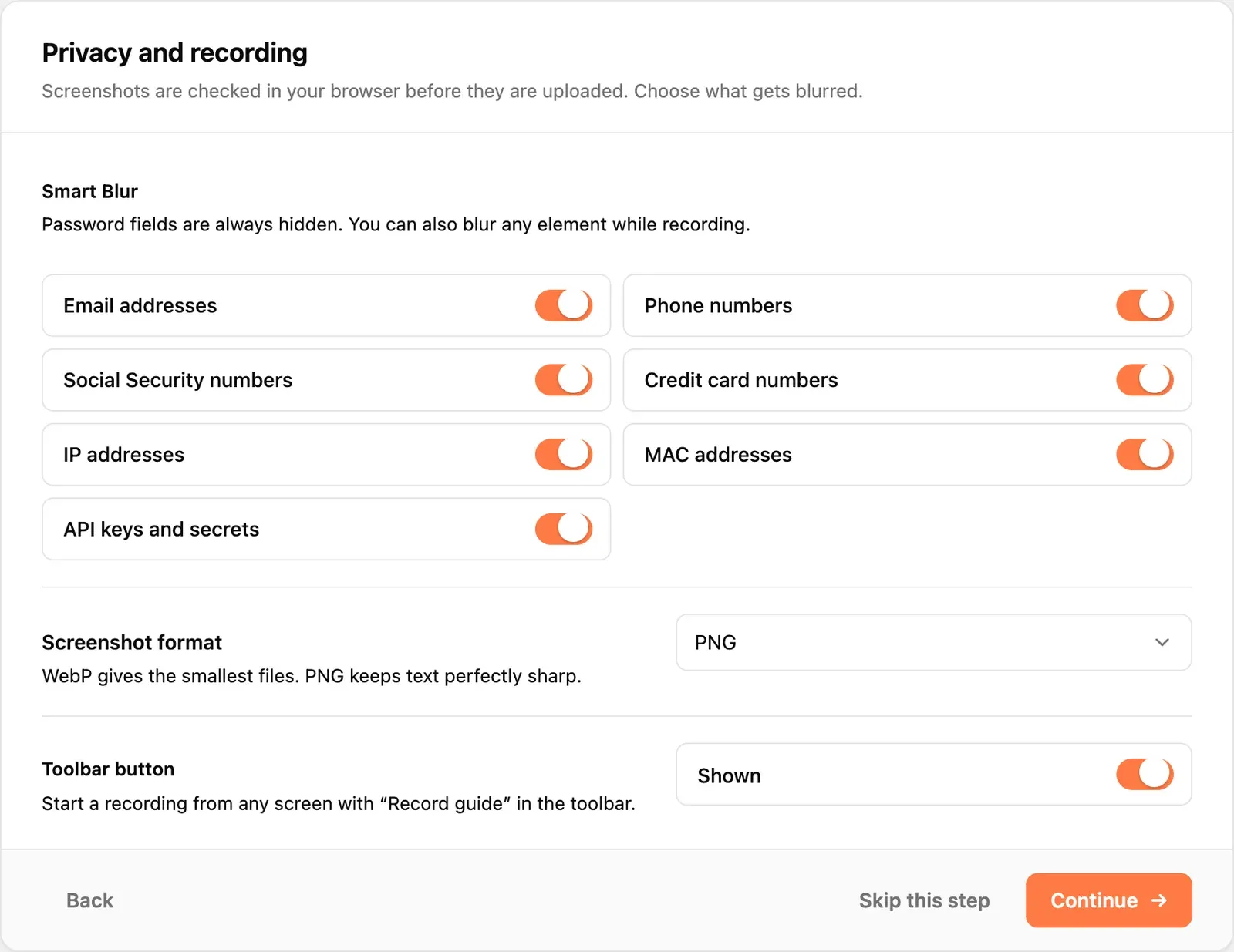
Smart Blur chooses what is pixelated in screenshots before they leave your browser. The categories are:
- Email addresses
- Phone numbers
- Social Security numbers
- Credit card numbers
- IP addresses
- MAC addresses
- API keys and secrets
All are on by default. Password fields are always hidden, whatever you choose here, and you can blur any other element by hand while recording — see Recording. For how detection works, see Privacy and Smart Blur.
Screenshot format is WebP (recommended, smallest files), JPEG, or PNG (sharpest text).
Toolbar button shows or hides the Record guide button in the WordPress toolbar. It is shown by default.
Branding
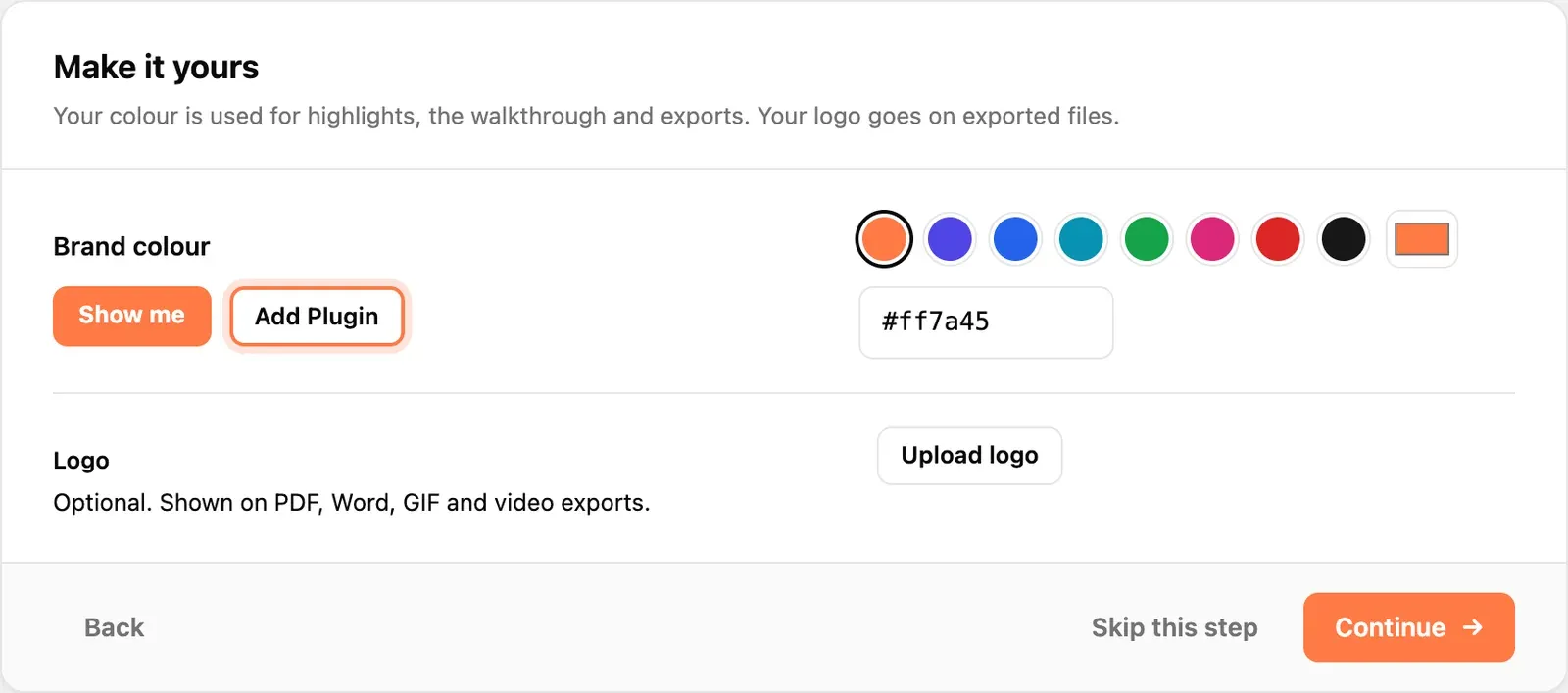
Brand colour is used for click highlights, the Show me walkthrough and
export accents. The preview beside it updates as you pick. The default is
#ff7a45.
Logo is optional. Press Upload logo to choose an image from the Media Library. It appears on PDF, Word, GIF and video exports.
More branding options — a footer line and the “Made with SimplifyGuide” credit — are under Settings → Branding. See Branding.
AI writing
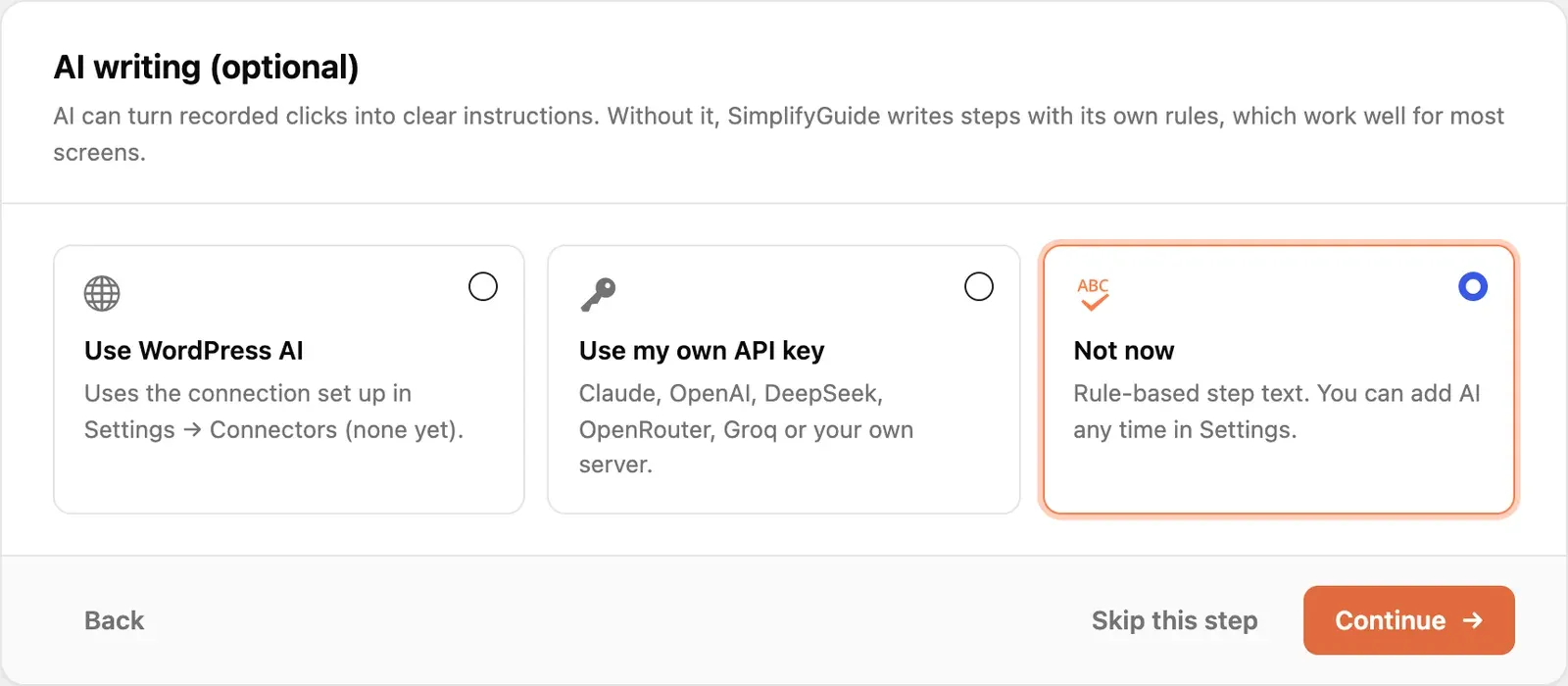
AI is optional. Without it, SimplifyGuide writes each step with its own rules (“In the left menu, go to Posts → Add New”), which work well for most screens. Choose one:
- Use WordPress AI — only offered when your WordPress version supports it. Uses the connection set up under Settings → Connectors, with no key needed here.
- Use my own API key — pick a Provider (Anthropic (Claude), OpenAI, DeepSeek, OpenRouter or Groq), paste your API key, and press Check key to test it before you continue. Keys are stored encrypted, and requests go from your server straight to the provider.
- Not now — rule-based step text. Nothing is changed.
Choosing Not now does not remove a provider you set up earlier. To connect your own server, choose a model, or set the language steps are written in, use Settings → AI writing. See AI providers.
Audience
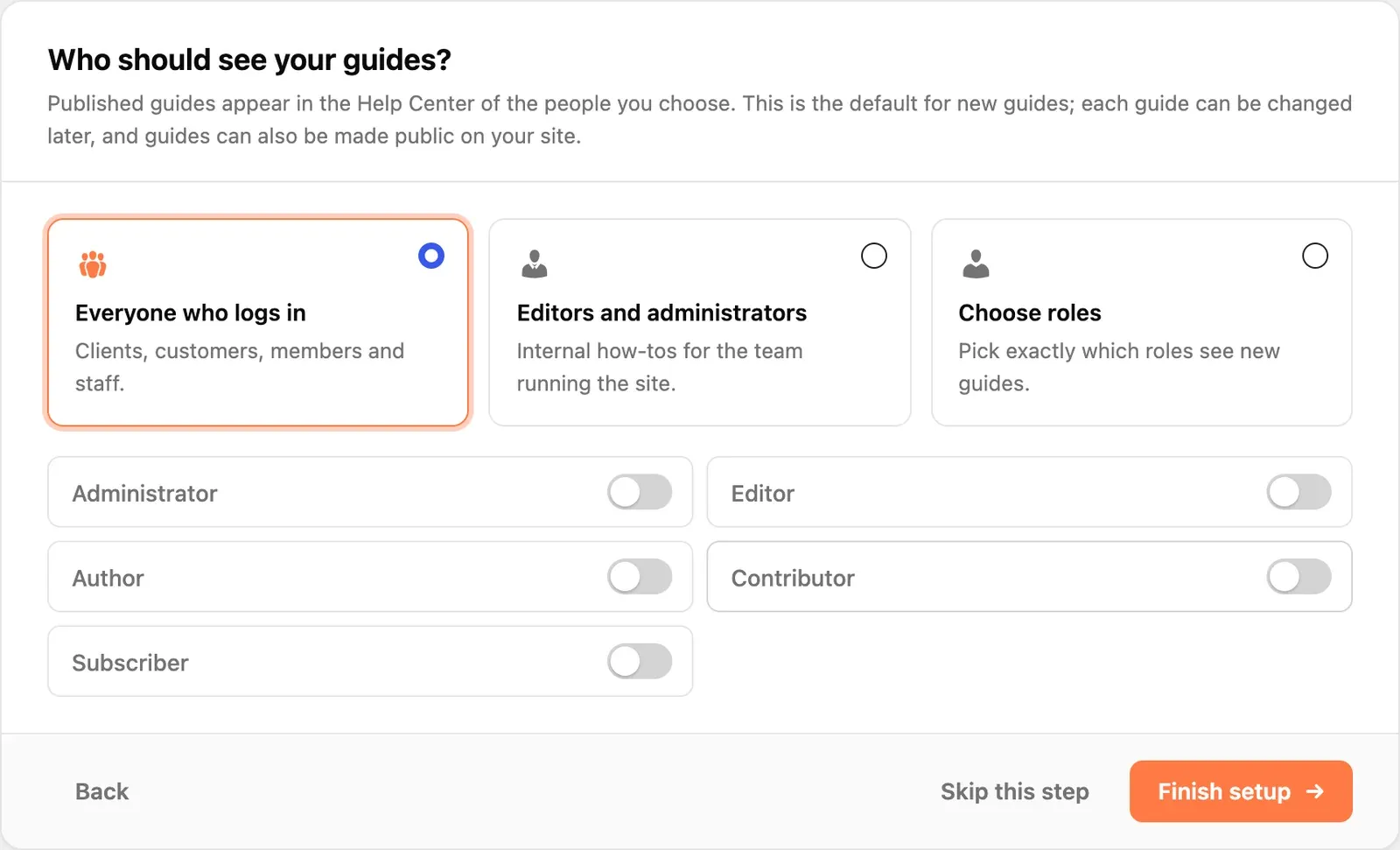
This sets who sees a new guide in the Help Center once it is published. It is only the default: each guide has its own Who sees this guide box in the editor, and a guide can also be made public.
- Everyone who logs in — clients, customers, members and staff. This is the default.
- Editors and administrators — internal how-tos for the team running the site.
- Choose roles — tick exactly the roles that should see new guides.
The same setting is Settings → General → New guides are shown to, where leaving every role off means everyone who can log in.
Press Finish setup to save and complete the wizard.
Done
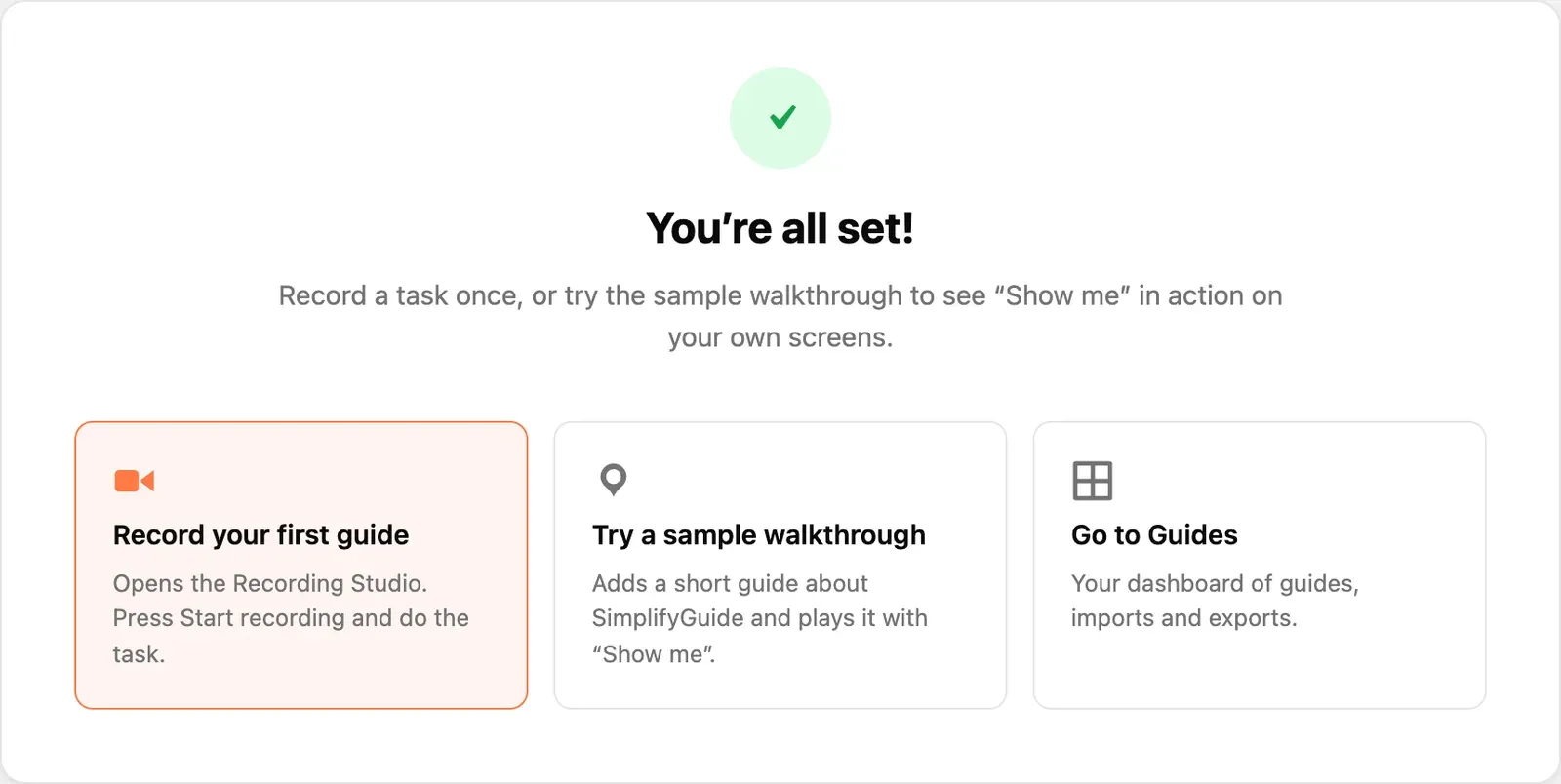
Three ways to carry on:
- Record your first guide opens the recorder. Follow Your first guide.
- Try a sample walkthrough adds a short, published guide called “Get to know SimplifyGuide” and plays it with Show me on your own screens. It is added only once; pressing it again replays the same guide.
- Go to Guides opens the Guides dashboard.
Running it again
Open SimplifyGuide → Setup Wizard, or press Run setup again under SimplifyGuide → Settings → Advanced. Each step opens with your current settings already filled in, so you can change one answer and skip the rest.
Only administrators (users who can manage options) can run the wizard.