The guide editor
Edit a guide's title, steps, notes and screenshots, and control who sees it, from one screen.
When you press Finish in the recorder, the guide opens in the editor. You can also get there from the Guides dashboard with the pencil button on a card, or with Edit in a guide’s sidebar.
The editor is the standard WordPress post screen with two changes: the main column holds the steps, and the sidebar holds the guide’s sharing settings.
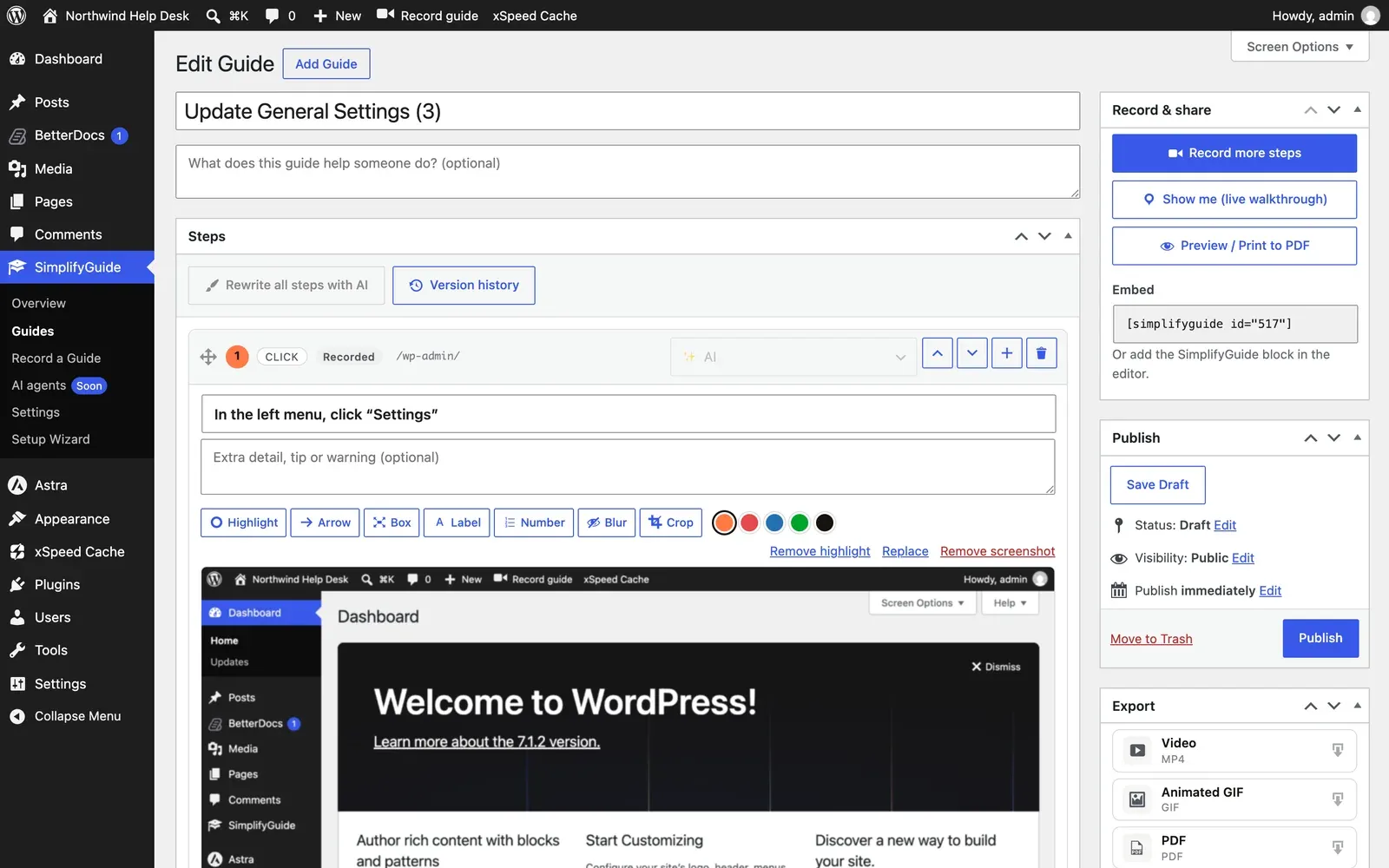
Nothing you change is stored until you press Update (or Publish on a new guide) — with two exceptions, Blur and Crop, which are explained below. If you try to leave with unsaved changes, the browser asks first.
Title and description
The title is the guide’s name everywhere: in the Help Center, on embeds, in exports and at the top of the Show me panel. The recorder names the guide from what you did; change it here if it is not quite right. See Automatic titles.
Under the title is an optional description, with the placeholder What does this guide help someone do? (optional). It appears under the title on the guide page, on embeds and on the guide’s card in the dashboard, and it is searched by the dashboard search box.

The Steps box
Each step is a card. Above the cards is a toolbar with Rewrite all steps with AI (see AI rewrite), Version history (see Version history), and, if you narrated the recording, a player for the Narration with Transcribe into notes and Delete narration (see Voice narration).
The card header

From left to right:
-
Drag handle — drag a card by this handle to move it. Only the handle starts a drag, so you can still select text in the card.
-
Step number — the step’s position. Numbers update as you reorder.
-
Action — what the step records:
click,input,select,check,uncheck,navigate,key,copy,paste,drag, ornotefor a step you wrote by hand. -
Source badge — where the instruction text came from. Hover it for the explanation.
Badge Meaning Recorded Written automatically from what you clicked while recording AI Written by AI from the recorded step Voice Transcribed from your narration Edited Changed by hand after recording Written Added by hand -
Page address — the screen the step was recorded on, as a path on your site. Show me uses it to send readers to the right screen.
-
AI menu — rewrite this one step. Disabled until AI is set up.
-
Move up and Move down — move the step one place.
-
Add a text step after this one — inserts an empty step below.
-
Delete step — asks for confirmation, then removes the step.
The source badge updates as you work: type in a recorded or AI step and it becomes Edited. A step you added by hand stays Written.
Step text and note
Each card has two text fields:
- The instruction — one line, placeholder What should the reader do? This is the step’s title everywhere it appears.
- The note — optional, placeholder Extra detail, tip or warning (optional). Use it for why, what happens next, or what to watch out for. Notes get their own source badge once they have one.
Keep the instruction short and name the exact button or field. Put everything else in the note.
Adding steps
- + Add a text step under the last card adds a step with no screenshot and no element to point at — a heading, a tip, or a step that cannot be recorded.
- The + button on a card adds one directly after it.
- Record more steps under the last card opens the recorder and appends new steps to this guide.
A text step you leave completely empty is dropped when you save.
Screenshots
Under a step’s text is its screenshot, with the annotation toolbar above it. The drawing tools are covered in Annotations. At the right of the toolbar:
- Replace — opens the Media Library so you can pick a different image. Replacing a screenshot clears that step’s highlight and annotations, since they were drawn for the old image.
- Remove screenshot — removes the image from the step, along with its highlight and annotations. The step stays.
A step without a screenshot shows an Add screenshot button instead.
The sidebar
Record & share
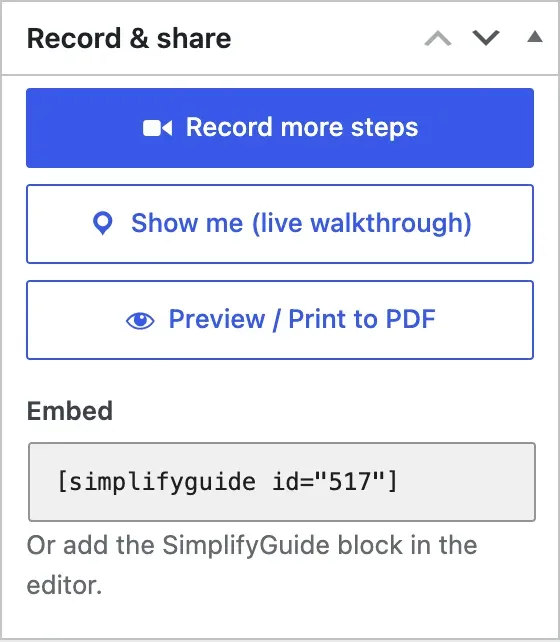
- Record more steps — opens the recorder to add steps to the end of this guide. On a guide with no steps yet it reads Record steps.
- Show me (live walkthrough) — starts the walkthrough of this guide. See Show me.
- Preview / Print to PDF — opens the guide as readers see it in the Help Center, where you can print it.
- Embed — the shortcode for this guide, selected when you click it, with a reminder that you can use the SimplifyGuide block instead. See Embedding a guide.
The last three appear once the guide has at least one step.
Who sees this guide
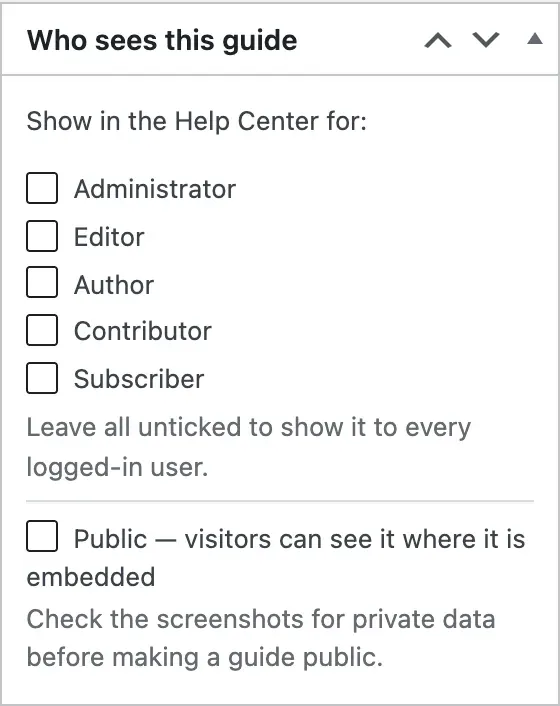
Show in the Help Center for: lists every role on your site. Tick the roles this guide is for. Leave all unticked to show it to every logged-in user.
New guides start with the roles chosen in the setup wizard, if any.
Below the roles is Public — visitors can see it where it is embedded. Read Public guides before you tick it.
Both settings only take effect once the guide is published. A draft is visible only to people who can edit it.
Publish
The standard WordPress box. Save Draft keeps the guide to yourself; Publish puts it in the Help Center for the people you chose. On a published guide, Update saves your changes.
Export
Download the guide as video, GIF, PDF, Word, HTML, Markdown or a SimplifyGuide file. See Exports.
Blur and Crop save straight away
Every other change waits for Update. Blur and Crop do not: they make a new image, upload it, and put it in place of the original on every step that used it. The original is then deleted from the Media Library, so the private data it showed does not linger.
That makes them permanent. Undoing the edit, or restoring an older version, does not bring the original image back.