Recording
How the SimplifyGuide recorder works, every control on it, what it captures and what it deliberately leaves out.
The recorder (the Recording Studio) loads your site inside a full-screen page and watches what you do in it. Each click, typed field and choice becomes a step with a screenshot. Because the recorder page itself never navigates, one screen-sharing prompt covers the whole recording, however many screens you move through.
Opening the recorder
There are three ways in:
- SimplifyGuide → Record a Guide opens the recorder on your Dashboard.
- Record guide in the WordPress toolbar opens the recorder on the screen you
are looking at — any admin screen, or any front-end page while you are logged
in. The current address is passed along as
?start=, so the recording starts exactly where you were. - Record more steps in the guide editor adds to an existing guide. See below.

The toolbar button is shown to anyone who can record (the edit_posts
capability — Authors and above by default). Hide it under Settings → General
→ Toolbar button.
The bar

From left to right:
Guide title. Type a name, or leave it blank and the guide is named from your steps when you press Finish. A title you type is never replaced. See Automatic titles.
Address bar. Shows the page loaded in the recorder. Type a path on your site and press Enter to go there; while recording, that adds a “Go to …” step. The Back and Reload buttons beside it work like the browser’s own.
Screenshots. Take a screenshot for every step. On by default. Untick it to record steps as text only, with no screen-sharing prompt. It cannot be changed once recording has started.
Narrate. Record your voice while you work. See Voice narration.
Start recording. Asks to share the tab (when Screenshots is ticked), creates the guide as a draft, and starts recording.
Pause / Resume. While paused, nothing you do is recorded and narration pauses too. Use it to set something up that should not be part of the guide.
Finish. Saves the remaining steps, names the guide if needed and opens it in the editor.
Exit. Leaves the recorder. If you are recording, you are asked to confirm. Steps recorded so far are kept, and you land in the guide editor; if nothing was recorded yet, you return to your guides.

While recording, the bar shows a red REC badge; while paused, PAUSED.
Screenshots and narration are uploaded to your Media Library, so both checkboxes are unavailable to users who cannot upload files.
Sharing the tab
Browsers only let a page take screenshots of itself through screen sharing. When you press Start recording, your browser asks what to share: choose This tab. SimplifyGuide shows a reminder at the same moment.
What you get depends on the browser and what you share:
- Chrome, Edge and other Chromium browsers, sharing this tab: screenshots are cropped to your site, without the recorder’s own bar and panel.
- Firefox and Safari, or sharing a window or the whole screen: steps are recorded without screenshots, because nothing in a shared window can be blurred. SimplifyGuide tells you when this happens.
- Declined, or a browser that cannot share: steps are still recorded, just without screenshots.
If you stop sharing part-way, recording carries on and new steps have no screenshot.
Screen capture needs HTTPS (or localhost). On a plain-HTTP site the browser
refuses it, and steps are recorded without screenshots.
What is captured
| You do | The step reads |
|---|---|
| Click a button, link, tab or menu item | Click “Save Changes” · In the left menu, go to Posts → Add New · Open the “Advanced” tab |
| Type in a text field | Type “Northwind” in “Site Title” |
| Choose from a dropdown | Choose “Contributor” in “New User Default Role” |
| Tick or untick a checkbox, pick a radio button | Tick “Anyone can register” · Untick “…” · Select “…” |
| Drag an item (sortable lists, drag and drop) | Drag “…” to “…” |
| Press a keyboard shortcut | Press Ctrl+S |
| Copy, cut or paste | Copy “…” · Paste into “…” |
A few details:
- Typing becomes a step when you leave the field — by clicking something else, pressing Enter, pausing or finishing — so you can type, correct and retype freely. Unchanged or empty fields are not recorded.
- Double clicks count once, and two quick clicks on neighbouring elements (a menu opening, a corrected mis-aim) are merged into one step.
- Keyboard shortcuts are recorded when they use Ctrl, Alt or Cmd, or are Esc or a function key. Ordinary editing inside a field — select all, undo, arrow keys — is not.
- Links that open a new tab open inside the recorder instead, so the recording can follow them.
- The block editor is followed too, including clicks inside its canvas.
Recording only works on your own site. A link to another site cannot be recorded.
What is not captured
- Password values. A password field becomes Fill in “Password”: the value is never written into the step. With Smart Blur on, the field is also pixelated in the screenshot.
- Sensitive values. Values that look like an email address, phone number, card number, Social Security number, IP or MAC address, or API key are never written into step text, whichever Smart Blur categories are on. In screenshots, the categories you have switched on are pixelated in your browser before the image is uploaded.
- Blurred elements. Text typed into or copied from an element you blurred is left out of the step (Fill in “…”, Copy the selected text).
- Anything while paused, and anything outside the recorder’s site area.
Smart Blur categories are set in the setup wizard or under Settings → General. See Privacy and Smart Blur for what each category matches.
The steps panel
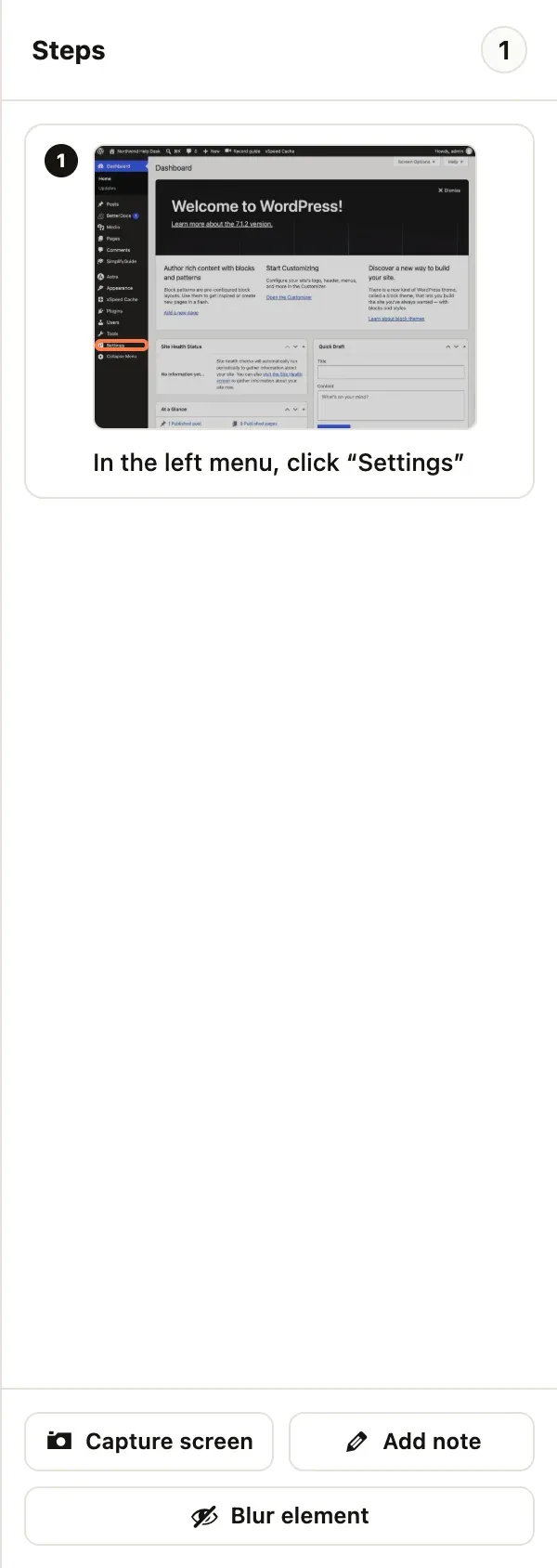
Steps appear on the right as you record, with a thumbnail and a highlight box around what you clicked. The number at the top is the step count. Each step is saved to the guide as you go, so a closed tab does not lose your work; the browser warns you if you try to leave while steps are still uploading.
To remove a step, hover over it and press the ×.
Capture screen
Adds a step with a screenshot of the screen as it is now, without clicking anything. You are asked for a caption (it suggests “Check this screen”). Use it to show a result: the saved settings, the published post. Available while recording.
Add note
Adds a text-only step with no screenshot — a tip, a warning, or an instruction that happens away from the screen. Available while recording.
Blur element
Turns on blur mode. Click anything on the page to blur it in every screenshot of this guide; click it again to unblur. Press Blur element again when you are done. While blur mode is on, clicks pick elements instead of pressing them, and nothing is recorded.
Blurred elements stay blurred in the recorder too, so you can see what is hidden. A blurred field shows its content while you are typing in it and blurs again when you leave it. You can blur elements before you start recording.
The blur list is saved with the guide and applies when you record more steps into it later. To blur part of a screenshot after recording, use the Blur tool in the editor — see Annotations.
Recording more steps into a guide
To add to a guide you already have:
- Open the guide in the editor.
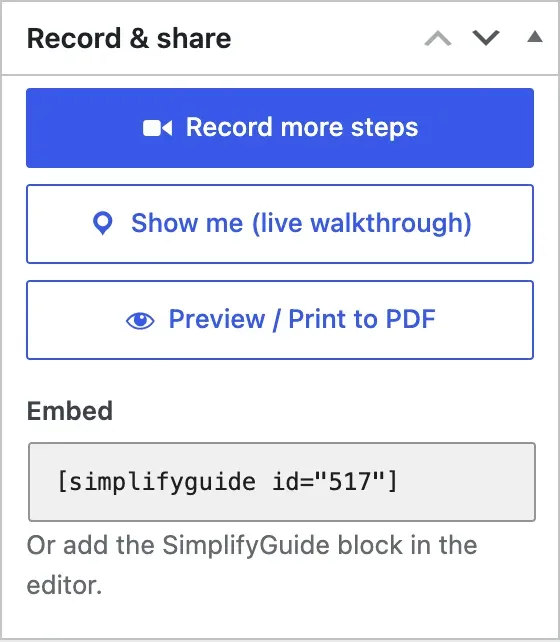
- In the Record & share box, press Record more steps (Record steps if it has none yet). In the classic guides list, the row action is Record more.
The recorder opens on the screen where the guide’s last step happened, with the guide’s title filled in. New steps are added after the existing ones. Press Finish and you are back in the editor.
If the guide was named automatically and you leave the title as it is, the name is worked out again from all the steps, old and new. A title you typed or edited yourself stays. See Automatic titles.
If you tick Narrate when recording more steps, the new narration replaces the guide’s earlier narration. See Voice narration.
When you press Finish
- Any field you were still typing in is recorded.
- The guide is named from its steps, unless you typed a title.
- Narration, if any, is uploaded and, if a voice provider is set up, transcribed into step notes.
- If Settings → AI writing → Rewrite on Finish is on and AI is set up, every step is rewritten by AI. See AI rewrite.
- The guide opens in the editor as a draft.
If narration or AI fails, the recorded steps are kept and the editor tells you what went wrong.
Who can record
Anyone with the edit_posts capability — Authors, Editors and Administrators
by default. Developers can change this with the
simplifyguide_author_capability filter.